
How to Automate Invoices from Google Sheets
A row-level workflow for using a billing sheet safely without making the spreadsheet a shadow accounting system.


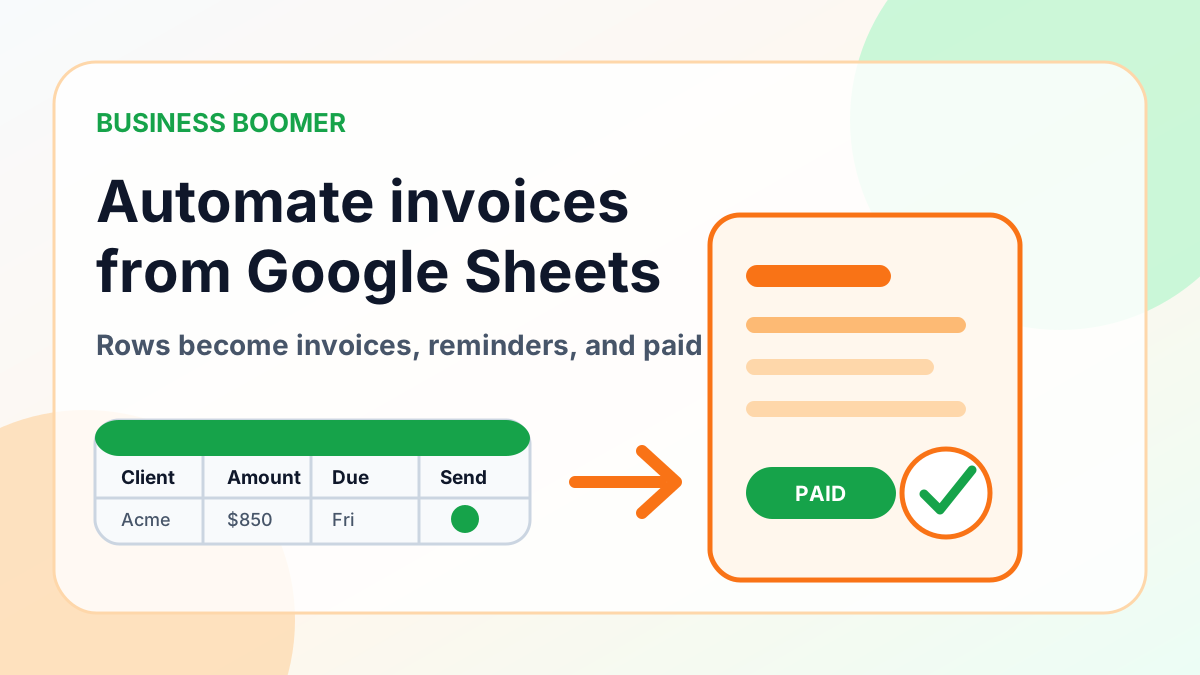
A billing spreadsheet can be a useful intake queue, but it should not become a second accounts-receivable ledger. The safest pattern is to validate an approved row, create one invoice draft in the accounting system, and write the result back to the row.
Give the sheet an explicit schema
Use stable columns rather than free-form notes. A workable minimum includes:
- unique billing-row ID
- customer or accounting customer ID
- service date or billing period
- approved line-item description
- quantity, rate, tax treatment, and amount
- due terms
- approval status and approver
- accounting invoice ID
- processing status, timestamp, and error message
Protect formula and system-writeback columns from casual editing. Do not store payment credentials or sensitive customer data that the workflow does not need.
Use an approved status as the trigger
Avoid triggering on “row added.” New rows are often incomplete. Use a controlled status such as Ready for invoice, set only after required fields and approval are present.
The automation should re-read the row at processing time, validate it, and check whether the unique billing ID already has an accounting invoice. If so, update the row with the existing record instead of creating another.
Controlled workflow
- A person completes and approves the billing row.
- Validation checks required fields, types, and allowed values.
- Duplicate protection checks the billing ID and invoice-ID column.
- The accounting platform creates a draft.
- The workflow writes the invoice ID and draft status to the same row.
- A reviewer confirms the customer, amount, taxes, terms, and supporting work.
- The accounting system sends the approved invoice.
- Payment status may write back for visibility, but accounting remains authoritative.
Prevent concurrent and duplicate processing
Two people or retries can touch the same row. Mark the row as processing with a timestamp or use a workflow lock before calling the accounting API. A retry should be safe: it checks for the prior result before creating anything.
Never rely only on the spreadsheet row number as the durable ID because rows can be inserted, sorted, or moved.
Error handling belongs in the sheet
Failures should be readable by the owner without opening automation logs. Write a short error status and assign a next action:
| Error | Safe response |
|---|---|
| Customer ID missing | Return row for customer matching |
| Amount or tax invalid | Stop and request review |
| Accounting timeout | Check for an existing invoice before retrying |
| Invoice draft created | Record invoice ID immediately |
| Row edited after processing | Flag for reconciliation; do not create another invoice |
Keep reminders out of the spreadsheet
The sheet can display invoice status, but reminders should use the accounting balance and due date. Otherwise a stale cell can contact a customer after payment. Paid, credited, disputed, or paused records should stop follow-up.
Use the invoice reminder templates and invoice automation checklist to define the downstream process.
Safe launch tests
With non-customer records, test a valid row, missing customer, invalid amount, duplicate trigger, edit during processing, accounting timeout, and recorded payment. Verify that only the valid path creates one draft and every exception is visible.
Do not send a real customer invoice or submit a real form during testing.
When to replace the sheet
Keep the sheet when it is a small, controlled intake queue. Move to a dedicated operational system when access rules, approval history, volume, concurrent edits, or relationships between jobs and invoices become too complex to manage safely in rows.
How Business Boomer helps
Business Boomer maps the billing row, validation, duplicate protection, accounting handoff, and exception owner. Review the Invoice Automation Setup in 7 Days, compare service options, or contact Business Boomer with the spreadsheet and accounting flow.
Keep building the system
Recommended next Business Boomer guides
These links are selected by topic and search intent so this guide connects to the most relevant service pages, industry pages, and supporting blog posts.
Service and setup pages
Use these when you are ready to turn the idea into an implementation path.
Industry-specific pages
See how the same workflow changes for specific business types.
Related blog posts
Read the connected guides that support this topic cluster.
Related AI automation guides
Keep going with the connected Business Boomer guides in this automation cluster.
Invoice automation setup in 7 days
A practical guide to one billing trigger, payment link, reminder sequence, overdue task, and owner handoff.
QuickBooks invoice automation setup
Connect QuickBooks invoice drafts, payment links, reminders, and overdue follow-up to real workflow triggers.
Invoice automation ROI calculator
A conversion helper that estimates admin time saved, faster payment collection, and the value of reducing manual invoice chasing.
Invoice automation for contractors
Connect completed jobs, estimates, QuickBooks, payment links, and overdue follow-up for contractor workflows.
FAQ
Quick answers about this guide and how to put the idea into practice.
What is the main takeaway from How to Automate Invoices from Google Sheets?
A row-level workflow for using a billing sheet safely without making the spreadsheet a shadow accounting system.
How does automate invoices from google sheets help a small business?
automate invoices from google sheets can help a small business reduce manual work, improve follow-up, organize repetitive tasks, and create a clearer operating process when it is tied to a real bottleneck.
Can Business Boomer help implement automate invoices from google sheets?
Yes. Business Boomer can help turn the idea into a practical workflow, page, checklist, or automation system depending on what the business needs first.
Turn invoice follow-up into a working setup.
Business Boomer can map the billing trigger, payment link, reminder timing, and overdue handoff for one focused invoice workflow.
See Invoice Automation Setup