
The Revised Estimate Is Missing: Match AI-Written Attachment Promises to Files
A sentence promising an attachment is not evidence that the right file is ready to send. Review the outgoing package before approving it.

An AI-written reply looks ready: the greeting is right, the next step is clear, and it says the revised estimate is attached. Before sending, check the file in the actual outgoing draft. The wording alone does not establish that a file was added—or that it is the revision you intended.
Use an attachment inventory to resolve it: list the promised deliverable, the approved revision and the file selected for upload. The inventory should expose a missing deliverable or obsolete revision before anyone approves dispatch.
Match the promise to a specific file
Read the sentence that describes the attachment. What exactly does it promise: a revised estimate, a completed form or a set of instructions? Locate the approved file that fulfills that promise before you approve the message.
Consider this fictional example. A customer requested an estimate without weekend service. Revision A includes weekend work; revision B removes it. An AI draft says the revised estimate is attached, but the file you selected is revision A. Improving the email's tone will not resolve the mismatch.
Check a distinguishing detail inside the intended document, such as the scope line excluding weekend service. A plausible filename is useful for finding a file, but it is not your final content check. Keep the approved original intact; do not overwrite it merely to make its name match the email.
For a package with several deliverables, use one row per promised item. For example, an estimate and a site diagram need separate checks; finding one does not establish that the other is present. Here is a single-item illustration:
| Item | Fictional review note |
|---|---|
| Message promise | Revised estimate without weekend service |
| Intended file | Estimate revision B |
| Distinguishing detail | Weekend service excluded in scope |
| Approval state | Ready only after the outgoing file matches |
These are review fields, not evidence of an actual customer transaction or test.
Inspect the outgoing draft, then add or replace the attachment
Open the message that would actually be sent. Do not rely on an AI chat window, a separate document or a file sitting in a project folder to establish the outgoing contents.
Google's Gmail attachment instructions for computers describe choosing Attach in the compose window, selecting the file and opening it. They also describe removing an added attachment using the control next to its name. Those are documented Gmail actions; they do not establish what any particular AI integration has done in your account.
If the wrong revision is present, remove it from the draft and add the approved file. If no file is present, add the intended one. Review the resulting attachment and the message together before proceeding. Avoid leaving both revisions attached unless sending both is deliberate and clearly explained.
If the outgoing item is a Drive link instead of a file attachment, do not call that the same completed check. Follow the separate quote-file access review for the intended recipient. Do not broaden sharing as a shortcut to approval.
Resolve an unfinished upload before approving the message
An upload warning is unfinished work. Google's guidance for the Gmail message about files being added from another device says to wait for that upload to finish before sending the attachments from the current message.
If the promised file is required, removing it just to get the message out would leave the promise unfulfilled. Pause the send and resolve the upload through your normal support process. If you intentionally decide to send a message without the file, revise the wording so it accurately states what is available and what remains outstanding.
Do not assume an AI-generated sentence has checked upload completion. Inspect the draft's current state yourself. This article does not claim a live Gmail account or connector was tested.
Close the attachment inventory
Close each inventory row only when the selected file fulfills its stated deliverable. If an estimate is present but a promised diagram is absent, leave the package incomplete. If an obsolete revision remains beside the approved one, resolve that ambiguity rather than expecting the customer to select the right document. Then complete your normal recipient and sending approval checks.
For the fictional estimate, the finish is not simply “email written.” It is “revision B selected, weekend scope checked, recipient checked, and message ready for the authorized sender's approval.” After sending, distinguish a record of what was sent from proof that the recipient opened or accepted it.
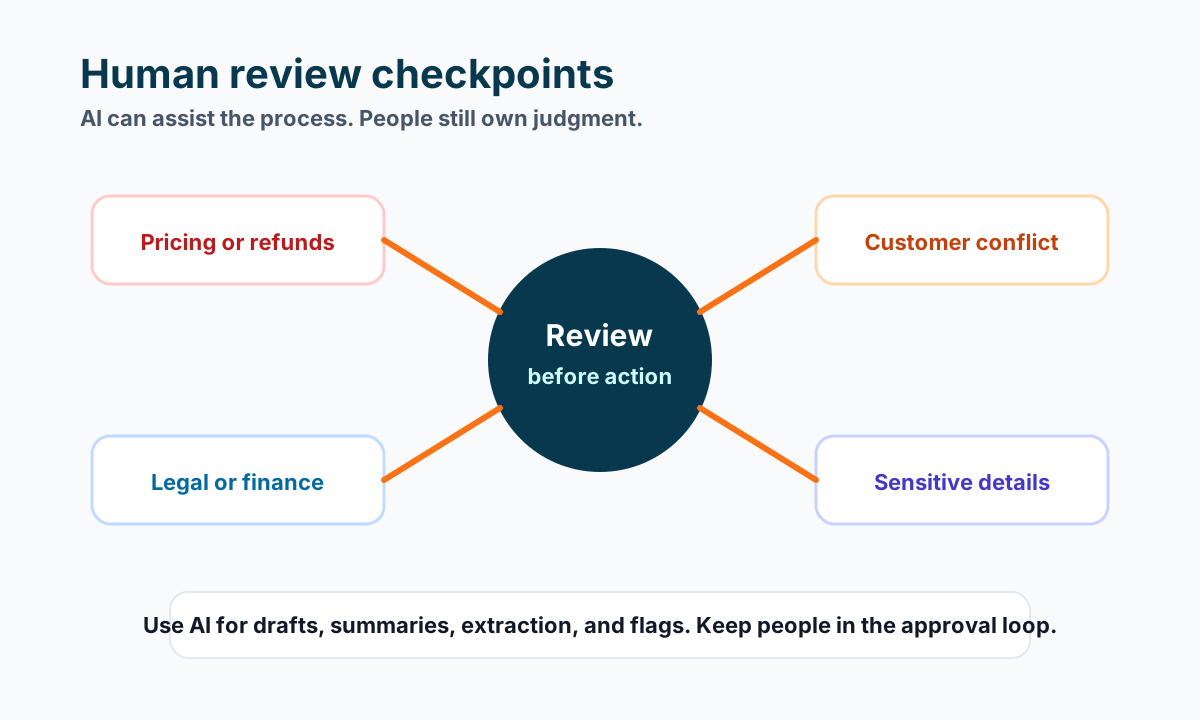
Make this attachment check part of the human approval step in your AI email workflow. If you want help designing that handoff, talk with Business Boomer about the draft, review and sending steps your team uses today.
Keep building the system
Recommended next Business Boomer guides
These links are selected by topic and search intent so this guide connects to the most relevant service pages, industry pages, and supporting blog posts.
Service and setup pages
Use these when you are ready to turn the idea into an implementation path.
Industry-specific pages
See how the same workflow changes for specific business types.
Related blog posts
Read the connected guides that support this topic cluster.
Related AI automation guides
Keep going with the connected Business Boomer guides in this automation cluster.
Lead follow-up automation for small business
Turn form fills, missed calls, quote requests, emails, and voice notes into reply drafts, CRM updates, reminders, and next steps.
Missed call text-back automation
Turn missed calls and voicemails into text-back drafts, lead summaries, callback tasks, and owner-approved next steps.
AI sales team and lead follow-up setup
Turn sales calls, form fills, quote requests, and owner notes into follow-up emails, calendar invites, CRM updates, and next-step reminders.
How to follow up with leads for small business
A practical workflow for CRM stages, reminders, email, text, and human follow-up tasks.
FAQ
Quick answers about this guide and how to put the idea into practice.
What is the main takeaway from The Revised Estimate Is Missing: Match AI-Written Attachment Promises to Files?
A sentence promising an attachment is not evidence that the right file is ready to send. Review the outgoing package before approving it.
How does AI email missing attachment Gmail help a small business?
AI email missing attachment Gmail can help a small business reduce manual work, improve follow-up, organize repetitive tasks, and create a clearer operating process when it is tied to a real bottleneck.
Can Business Boomer help implement AI email missing attachment Gmail?
Yes. Business Boomer can help turn the idea into a practical workflow, page, checklist, or automation system depending on what the business needs first.
Stop letting leads sit without a next action.
Business Boomer can install lead capture, first-response drafts, quote follow-up reminders, and a simple owner handoff.
See Lead Follow-Up Automation