
AI Follow-Up Already Scheduled in Gmail? Cancel the Old Version Before Revising
A better AI draft does not remove the old scheduled message. Check the queue before replacing a follow-up that no longer fits the conversation.

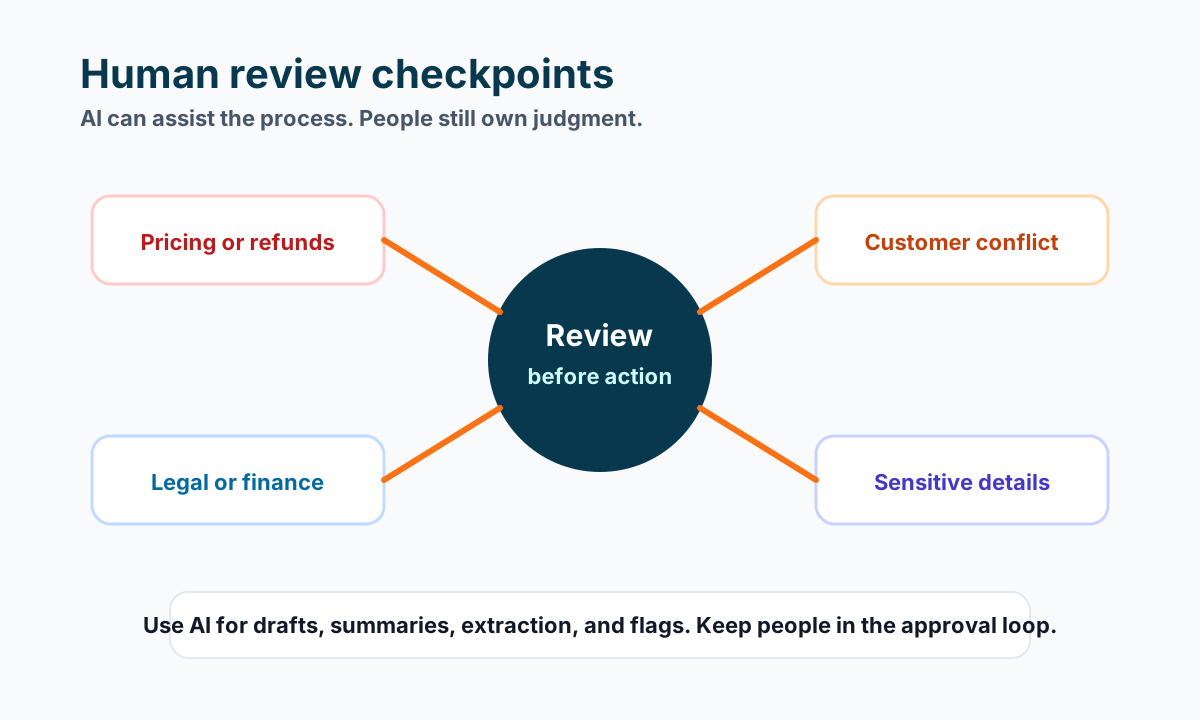
You used AI to draft a polite estimate reminder and scheduled it for tomorrow. Then the customer replied. The wording may now be out of date—or the reminder may no longer be needed at all.
Start with the scheduled message, not a new prompt. Creating a replacement draft does not establish that the earlier message is no longer queued. Your task is to reconcile the old action with the current conversation before deciding whether to schedule anything else.
This checklist covers Gmail's own scheduled messages on a computer. It does not establish what a CRM, sequence tool or another mailbox has queued. If another system owns the follow-up, inspect that system separately rather than treating Gmail as the complete record.
Find the exact scheduled message
Open the correct sending account and locate the intended message in Scheduled. Compare the recipient address, subject, body and planned send time with the conversation you are handling. A familiar customer name is not enough to identify the right message.
Read the latest human reply and relevant sent context before making changes. Has the customer accepted the estimate, asked a question, requested a different date or said not to follow up? Those are different next steps. Do not let the AI turn every reply into another sales reminder.
Keep a brief working note: which queued message you found, what changed and who owns the response. Use an existing customer record where appropriate; avoid creating an unnecessary second tracking system.
Here is a fictional example, not a customer outcome or a tested email run:
| Item | Earlier plan | New information |
|---|---|---|
| Estimate | Q184 awaiting a response | Customer says they accept |
| Queued email | Ask whether they have decided | That question is now stale |
| Decision needed | Send reminder tomorrow | Confirm the next agreed step, or hold for staff |
Acceptance in this example does not prove a job is booked, payment is arranged or a date is available. Keep those details separate unless the actual record supports them.
Cancel before editing the old commitment
Google's scheduled-email instructions describe opening Scheduled, selecting the email and choosing Cancel send before editing and scheduling a new date and time. Google says a canceled scheduled email becomes a draft.
Apply that process only to the exact message you identified and are authorized to manage. Confirm the resulting state before creating a replacement. If you cannot tell whether the cancellation took effect, inspect the queue and relevant message history rather than repeatedly clicking or scheduling a second copy.
If the original is already sent, stop treating this as a scheduled-draft edit. Read what actually went out and decide whether a separate response is warranted. Do not assume that canceling another item recalls a message already delivered.
Compare the revised draft with the latest reply
First decide whether another message is useful. In the fictional example, a reminder asking for a decision should not merely be made warmer. Its purpose has expired. A staff member may instead need to confirm the next step, or resolve an unanswered operational question before replying.
If a response is appropriate, give the AI a bounded drafting task using only business-approved information. Ask it to acknowledge the actual reply and leave unknown dates, prices or commitments unresolved. Review the output against the source conversation; do not accept a plausible detail just because it sounds helpful.
Use the AI operator prompt pack as a starting point for reviewable drafts. In this case, add a specific constraint: do not ask the customer to repeat a decision they already supplied.
Check recipient and copied addresses again. Then compare the final wording with the latest reply, any approved attachment or link, and the next action your team can actually perform. A revised paragraph alone is not the whole message review.
Verify one intended schedule, not two
Schedule a replacement only when the content, recipient and timing are approved. Google's documentation notes that scheduled mail uses the time zone in which it was scheduled and may send a few minutes after the selected time. Do not promise exact-second delivery.
Read back the intended queued message and verify that the stale version is no longer scheduled. If no further follow-up is needed, a canceled reminder with no replacement can be the correct result. Do not manufacture another email to make the workflow look complete.
For recurring AI-assisted follow-ups, make this queue check part of the handoff whenever a new reply changes the next step. Keep draft preparation, scheduling and actual sending as separate states. An approved draft is not proof of a scheduled action, and a scheduled action is not proof of delivery.
Need a clearer review point between an AI draft and a customer-facing message? Talk with Business Boomer about mapping who checks the conversation, who controls the queue and what evidence closes the handoff.
Keep building the system
Recommended next Business Boomer guides
These links are selected by topic and search intent so this guide connects to the most relevant service pages, industry pages, and supporting blog posts.
Service and setup pages
Use these when you are ready to turn the idea into an implementation path.
Industry-specific pages
See how the same workflow changes for specific business types.
Related blog posts
Read the connected guides that support this topic cluster.
Related AI automation guides
Keep going with the connected Business Boomer guides in this automation cluster.
Lead follow-up automation for small business
Turn form fills, missed calls, quote requests, emails, and voice notes into reply drafts, CRM updates, reminders, and next steps.
AI sales team and lead follow-up setup
Turn sales calls, form fills, quote requests, and owner notes into follow-up emails, calendar invites, CRM updates, and next-step reminders.
How to follow up with leads for small business
A practical workflow for CRM stages, reminders, email, text, and human follow-up tasks.
AI assistant for local business
Owner-controlled AI assistants that help local businesses handle missed leads, scheduling handoffs, FAQs, reviews, CRM updates, and follow-up.
FAQ
Quick answers about this guide and how to put the idea into practice.
What is the main takeaway from AI Follow-Up Already Scheduled in Gmail? Cancel the Old Version Before Revising?
A better AI draft does not remove the old scheduled message. Check the queue before replacing a follow-up that no longer fits the conversation.
How does revise scheduled Gmail follow-up help a small business?
revise scheduled Gmail follow-up can help a small business reduce manual work, improve follow-up, organize repetitive tasks, and create a clearer operating process when it is tied to a real bottleneck.
Can Business Boomer help implement revise scheduled Gmail follow-up?
Yes. Business Boomer can help turn the idea into a practical workflow, page, checklist, or automation system depending on what the business needs first.
Stop letting leads sit without a next action.
Business Boomer can install lead capture, first-response drafts, quote follow-up reminders, and a simple owner handoff.
See Lead Follow-Up Automation