
AI Edits Still Pending in Google Docs? Review Suggestions Before Calling the Copy Final
A cleaner preview is not an approval record. Resolve proposed wording changes before telling a colleague that AI-assisted copy is ready to use.

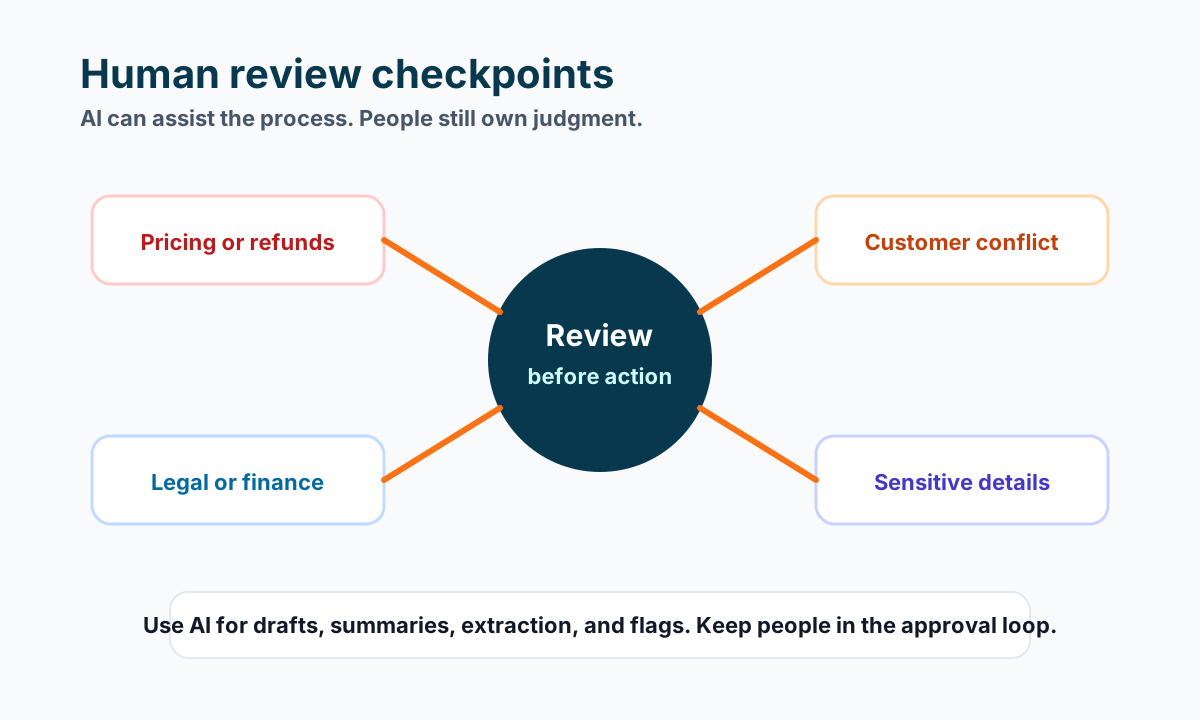
An AI-assisted rewrite looks smoother, so someone tells the team the document is final. But some changes are still suggestions—and one of them replaces a modest service promise with a much stronger one. Before the copy reaches a customer, separate what was proposed from what the business actually approved.
This is a wording-decision task, not a reason to restore an older document wholesale. Keep useful agreed edits while reviewing the unresolved changes. A clean-looking preview can help you read, but it does not tell you who authorized a new promise.
Identify proposed changes versus agreed wording
Open the intended document and locate the passage being handed off. Check whether the rewrite was added as suggestions or directly edited into the text. Do not assume that AI assistance automatically means suggestion mode was used.
Google's suggested-edit documentation describes suggestions as changes that do not replace the original text until approved. In suggestion mode, additions appear in a new color and deletions are crossed out.
Read those visual signals as review context, not as evidence that a particular person has approved the wording. Identify the responsible reviewer and the source they should use to decide: an approved service description, an agreed project scope or another current business record.
If the text was directly edited, do not invent a pending suggestion to explain it. Compare the passage with the relevant approved source and ask the owner to resolve any discrepancy. This checklist does not establish a document's full edit history.
Preview both versions without treating either as approval
On a computer, Google documents Tools → Review suggested edits, with preview options showing the document with or without proposed changes. Use the comparison to understand the whole sentence rather than judging an isolated replacement word.
Read nearby headings, qualifications and calls to action too. A sentence can sound reasonable on its own while contradicting a limit in the next paragraph. Record the actual question the reviewer must answer, such as whether a response-time promise is supported.
Here is a fictional example, not a customer document or an account test:
| Proposed change | Review question | Illustrative decision |
|---|---|---|
| Replace “reply within two business days” with “instant reply” | Has the business authorized and supported this stronger promise? | Reject if unsupported |
| Correct a misspelled service name | Does the correction match the approved name? | Accept if confirmed |
| Remove a scope limitation | Is the limitation still part of the offer? | Hold for the owner if unclear |
These decisions are independent. Confirming a spelling correction is not permission to strengthen a service commitment. The example is about review logic, not evidence that your business should use either response-time claim.
Resolve consequential suggestions one by one
Google documents accepting or rejecting individual suggestions, as well as accepting or rejecting all suggestions. Use individual decisions when the changes have different reasons or different owners. A batch action is not a substitute for reading the proposed wording.
Start with the changes that affect what the business promises: scope, timing, availability, pricing references or the next step a reader is told to take. Compare each with its actual source. Leave an unresolved business decision open rather than asking the AI to choose a plausible answer.
For a routine wording change, ask whether the revised sentence preserves the meaning and any necessary qualification. Prefer a specific edit request over a broad instruction to make everything more persuasive. For example: keep the approved response-time wording while shortening the surrounding explanation.
If you do not have the authority or access needed to resolve a suggestion, hand the exact passage and decision question to its owner. Do not change sharing permissions or accept everything merely to remove the visible review marks.
Read back the approved wording at handoff
After the intended decisions are made, reread the resulting passage. Confirm the service name, promise, limitations and next action together. If a suggestion was rejected, check that the retained wording is actually the wording you intended to keep.
Tell the next person what is ready and what is not. “The service-description paragraph is approved; the scope limitation still needs the owner” is more useful than labeling the whole document final. Use your existing review record to note the decision without creating another status board.
Check the actual destination copy separately when someone later pastes or publishes it. This review does not prove how an export, integration or website will handle suggested edits. It establishes the wording your team has agreed to use, not downstream delivery.
Our AI operator prompt pack can help frame a bounded drafting request. Pair that request with a named decision owner and a readback of the resulting copy. The AI can propose clearer language; your business still needs to decide what it is prepared to say.
Need help separating draft preparation, copy approval and customer-facing delivery? Talk with Business Boomer about a review handoff that makes those states visible before the next workflow uses the text.
Keep building the system
Recommended next Business Boomer guides
These links are selected by topic and search intent so this guide connects to the most relevant service pages, industry pages, and supporting blog posts.
Service and setup pages
Use these when you are ready to turn the idea into an implementation path.
Industry-specific pages
See how the same workflow changes for specific business types.
Related blog posts
Read the connected guides that support this topic cluster.
Related AI automation guides
Keep going with the connected Business Boomer guides in this automation cluster.
AI automation services for local small business
Planning examples for broader automation. Compare current managed calls and reviews on the Services page; confirm other work in a separate scope.
AI automation for local service businesses
Practical lead, scheduling, review, CRM, invoice, and admin automation for plumbers, HVAC companies, roofers, landscapers, cleaners, contractors, and other local operators.
AI assistant for local business
Owner-controlled AI assistants that help local businesses handle missed leads, scheduling handoffs, FAQs, reviews, CRM updates, and follow-up.
AI website for service businesses
Clearer service pages, lead paths, FAQs, reviews, and AI-assisted follow-up for service businesses.
FAQ
Quick answers about this guide and how to put the idea into practice.
What is the main takeaway from AI Edits Still Pending in Google Docs? Review Suggestions Before Calling the Copy Final?
A cleaner preview is not an approval record. Resolve proposed wording changes before telling a colleague that AI-assisted copy is ready to use.
How does Google Docs AI edits pending suggestions help a small business?
Google Docs AI edits pending suggestions can help a small business reduce manual work, improve follow-up, organize repetitive tasks, and create a clearer operating process when it is tied to a real bottleneck.
Can Business Boomer help implement Google Docs AI edits pending suggestions?
Yes. Business Boomer can help turn the idea into a practical workflow, page, checklist, or automation system depending on what the business needs first.
Find the workflow worth fixing first.
Use the Free 30-Minute AI Consultation to map where leads, invoices, notes, or follow-ups are slipping and choose the smallest useful system.
Book a Free 30-Minute AI Consultation