
Google Review Reputation Management for Small Businesses
A practical process to request honest Google reviews, answer new feedback and follow up on problems without filtering who can respond.


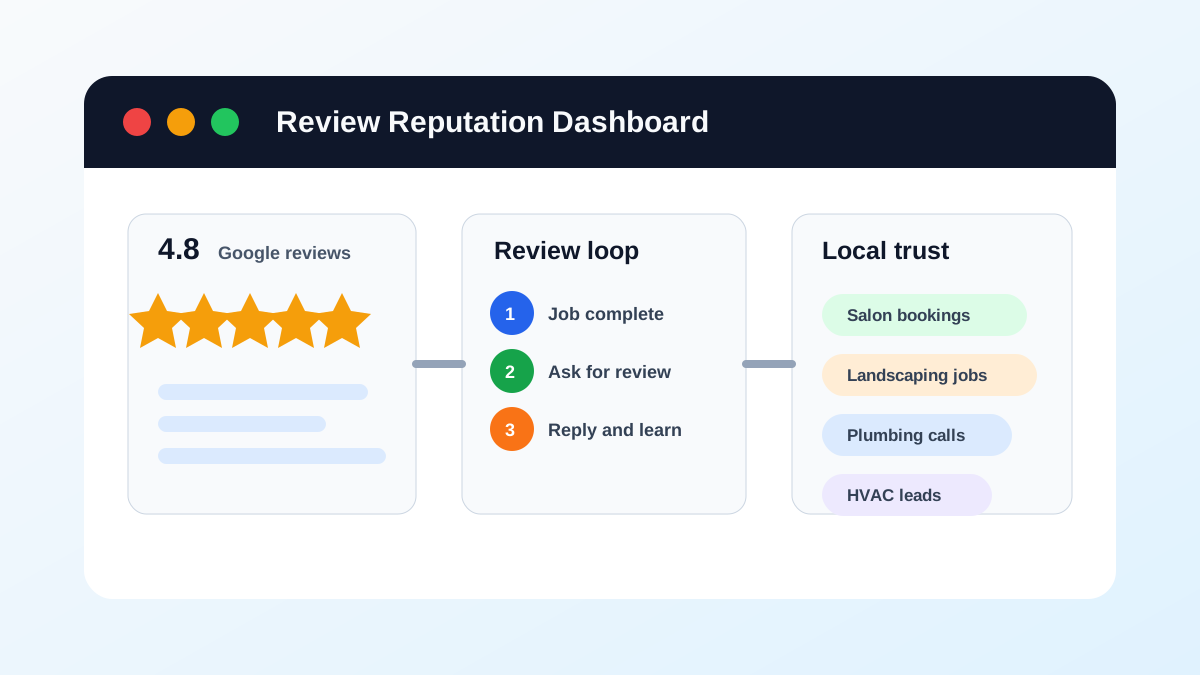
A useful review process does three things: it invites eligible customers to share honest feedback, gives someone responsibility for new reviews and turns repeated complaints into specific service fixes. It does not decide who may post based on how satisfied they seem.
Google's current guidance allows businesses to ask real customers for reviews with a link or QR code, encourages replies and prohibits incentives and selective positive-review requests. Check Google's review tips and Maps content policy when you set the rule. I checked the native instructions September 26, 2026; Google can change the interface or policy.
Set the job trigger before choosing software
Pick an event your business already records, such as a completed service visit, closed work order or finished appointment. Define which records qualify, how often the same customer can be asked and what counts as a duplicate. Apply that rule without looking at a rating, complaint or private satisfaction survey.
| Work record | Eligible? | Rule to apply |
|---|---|---|
| Completed job with no recorded issue | Yes, if it meets your objective rule | Send the standard invitation through an approved channel. |
| Completed job with a complaint | Yes, if it meets the same rule | Keep the same review link available. Create a separate service-recovery task. |
| Duplicate event for the same job | No second request | Check the earlier request record before sending. |
| Canceled appointment or incomplete job | Usually no | Do not treat an uncompleted service as a completed-work trigger. Write any special case into the rule first. |
These are process examples, not customer records. Keep the eligibility rule short enough that a second employee would make the same decision.
Get and check the right Google link
- Sign in to the Google account that manages the correct, verified Business Profile.
- Open the profile and select Read reviews, then Get more reviews.
- Copy the review link. Google currently lets you download the QR code from a computer browser; the QR option may not appear on a phone.
- Open the copied link in a private browser or on another device. Scan the QR code with a phone. Confirm both reach the intended location, not a directory search or another branch.
- Save the approved link in the message template and log. Recheck it after changing locations or profiles.
Google's link and QR walkthrough shows the current steps. Keep the business's direct public review path available to every eligible customer.
Send one neutral invitation
Use an approved channel and follow its consent and opt-out rules. A plain request gives the customer a choice without steering the rating or wording:
Thank you for choosing [Business]. If you would like to share your experience, you can leave an honest Google review here: [link]. For help with the service, contact [support].
For a plumber, salon or landscaper, you can name the completed visit in the first sentence. Keep the invitation and link the same for all eligible customers. Do not offer a discount, ask for five stars, or route unhappy customers to a private form instead of Google. After you address a service issue, you may invite the customer to update their review if they choose; do not pressure them or make help conditional on a change. See how to follow up on a negative review without pressure.
The review-request audit checklist helps you inspect the trigger, eligibility rule, duplicate control, consent, recipient selection and delivery evidence. It starts at Not checked; this article does not establish how an account is configured.
Keep a small request log
A log catches missed and repeated requests without becoming a second customer record system. Use a job reference, location label and workflow status. Do not copy private service notes, payment details, health information or message histories into it.
The sample review-request log contains three fictional rows: an eligible completed job, the same job's duplicate event and a canceled job. They are examples only; none was sent. For a real entry, record the request date and channel after you act, and store delivery evidence only if your system provides it. A prepared request is not a delivered request.
Assign review monitoring and reply work
Choose one person to check the profile on a schedule, one person to approve sensitive replies and one owner for service-recovery tasks. Google requires a verified profile before a business can reply. In the current interface, open the profile, choose Read reviews, select Reply, write the response and submit it. Google reviews submitted replies for policy compliance. A reply may appear within minutes or take longer; check the public profile before saying it is live. Google's reply instructions explain the steps and what happens after submission.
| Review situation | Public reply owner | Internal next step | Status to record |
|---|---|---|---|
| Positive review with a specific service detail | Trained manager or owner | Thank the customer; share a useful response without turning it into an ad. | Draft, approved, submitted, visible |
| Negative review that describes a service problem | Owner or assigned service lead | Acknowledge the concern, invite private contact and open a recovery task. Do not expose job details. | Owner review, recovery owner, due date |
| One-star rating with no comment | Owner or trained manager | Do not guess what happened. Give a brief, respectful invitation to contact the business. | Draft, submitted, visible |
| Possible policy violation, impersonation or unrelated content | Profile owner or manager | Preserve the URL and reason; flag it only under the relevant Google policy. Continue the ordinary customer-service process when appropriate. | Flagged, Google decision pending, closed |
| Personal or sensitive information | Owner or privacy lead | Do not repeat the detail publicly. Ask the reviewer to contact the business privately and follow the business's privacy process. | Escalated, restricted details, owner assigned |
If a review exposes customer details, follow the personal-information review guide before writing a public reply. Keep those details out of your response.
A low score by itself does not establish a violation. Google decides whether flagged content breaks its rules. Do not promise removal or ask a reviewer to change a rating in exchange for help.
For a negative review, use a short reply that acknowledges the concern and moves private details out of public view. For example: “Thanks for letting us know. We would like to understand what happened. Please contact [role/team] at [private contact] so we can review it with you.” Keep names, addresses, appointment details and payment information out of the response. Google's reply guidance recommends concise, professional replies and protecting customer privacy.
Run the manual weekly loop first
A small business can start with a calendar reminder and the native Business Profile tools:
- Check new reviews once each workday or assign a named backup.
- Record each review needing attention without duplicating sensitive customer notes.
- Draft a reply, ask the owner to approve sensitive details and submit it in the verified profile.
- Confirm the reply appears publicly; keep it marked pending until then.
- Assign private follow-up to a named person with a due date. Close the task only after the business records what it did.
- At month end, group repeated themes, choose one fix and name the person responsible.
Check five process measures: eligible jobs that received one request, duplicate attempts prevented, new reviews still awaiting an owner, time to first reply and recurring issues with a documented corrective action. These measures describe workflow coverage. They do not promise more reviews, a higher star rating or better search rankings.
Decide when to use software
Keep the manual process while one person can apply the rule, send each eligible invitation and monitor replies on schedule. Consider software when you have several locations, repeated missed requests or separate people handling completion, replies and recovery. Compare the proposed trigger, recipient rules, duplicate prevention, channel permissions, failure alert, owner review and exportable records before enabling it.
Run a small, owner-approved test with sample records: one eligible completed job, the same job sent through twice, one complaint and one canceled job. Check that the eligible job receives the neutral link, the duplicate is stopped, the complaint keeps the public path and the canceled job receives no request. Use the existing workflow acceptance checklist to record expected and observed outcomes. Leave cases Not tested until someone tests them.
If the workflow needs managed setup, AIBB's Google Reputation Management service currently lists a free first month followed by $199/month, with no setup fee. It helps define the trigger, timing and wording and prepares reply drafts for owner approval. The owner supplies the real Google link, approves the channel and rules, and handles customer decisions. The service does not guarantee reviews, ratings, removal or rankings.
If callers also need a clear after-hours response, compare the separate AI Voice Receptionist service. It addresses call intake and routing; it does not change the neutral rule for review requests.
Review what customers say, then fix one thing
Once a month, group feedback by a service issue customers can recognize: unclear arrival windows, cleanup, estimate delays or unanswered calls. Check the underlying records with the staff who handled the work. Choose a change the business can own, assign a person and review whether the process changed. A review theme is a clue to investigate, not proof that one workflow caused every complaint.
Good review management gives customers the same honest public route and gives your team a reliable way to listen and respond. Start with the trigger and the owner. Add software only when a specific part of that work keeps getting missed.
FAQ
Quick answers about this guide and how to put the idea into practice.
How do I get the Google review link for my business?
In the verified Business Profile, select Read reviews, then Get more reviews. Copy the link or, on a computer, download the QR code. Open the link and scan the code to confirm they reach the intended location.
Should I ask only customers who seem happy?
No. Use an objective completed-work rule and give every eligible customer the same honest-review invitation and public review path, regardless of satisfaction or a complaint.
Can Google remove a low-star review?
A low rating alone is not a policy violation. You can flag a review that you believe breaks Google's content policies, but Google decides whether it qualifies for removal.
Should I automate review requests?
Start with a manual weekly process. Consider software when multiple locations, missed eligible requests or split ownership make the manual log hard to maintain. Review the actual rules before enabling delivery.