
Invoice Automation for Landscapers
Connect verified job completion to the right invoice while protecting deposits, route work, weather delays, and change orders.


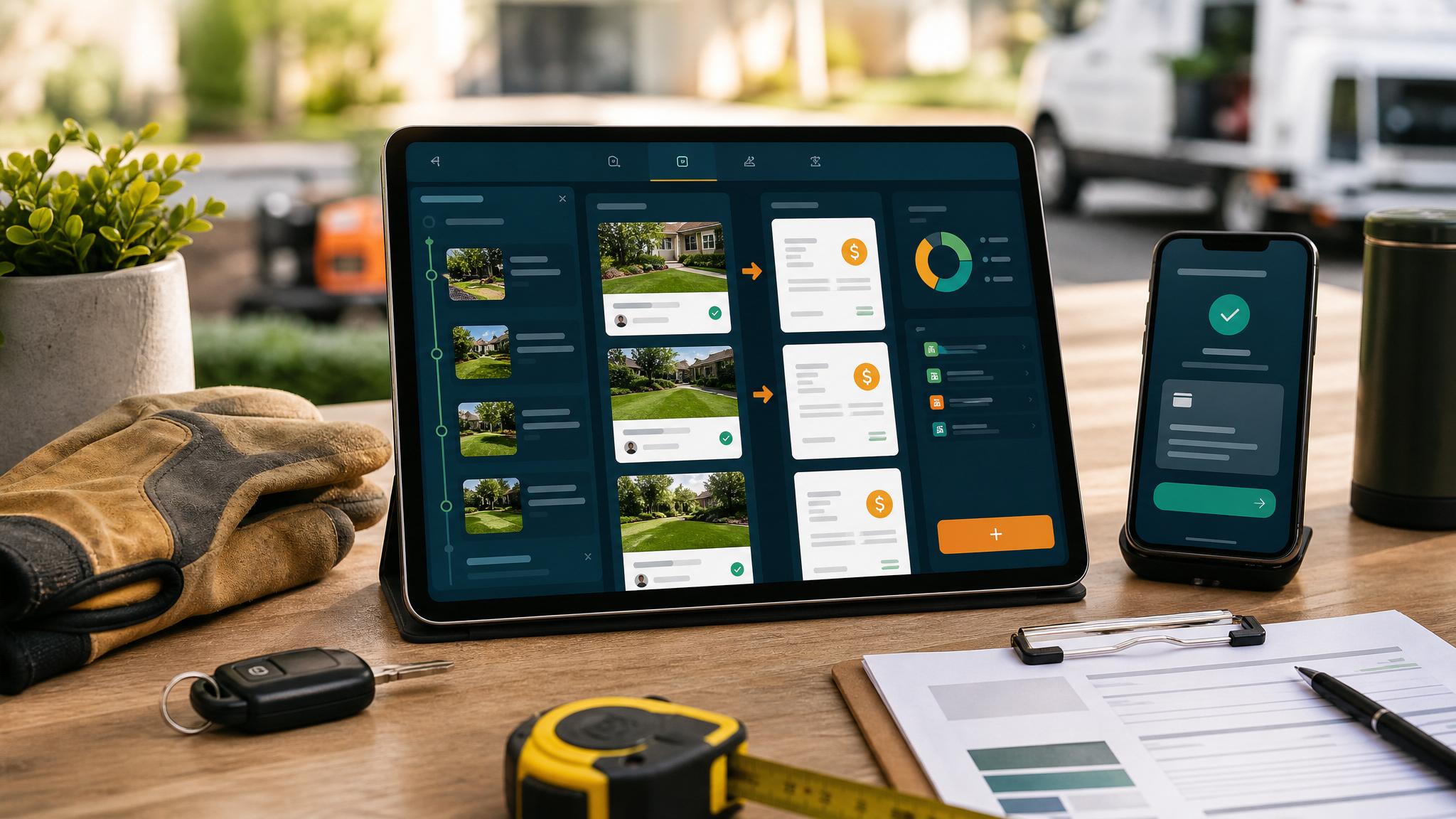
For a landscaping company, “job complete” can mean a finished one-time project, the last stop on a recurring route, an approved phase, or work that still needs a customer sign-off. Invoice automation should reflect those differences instead of billing every completed task the same way.
Quick answer: Use a verified operational status to create the right invoice draft, apply deposits and approved changes, review exceptions, then let accounting payment status control reminders.
Define completion in the field workflow
Choose a completion state the crew or office already understands. It may require a completed checklist, service notes, photos, materials, customer approval, or a supervisor review. The trigger should not fire from a calendar appointment merely ending.
For each service type, document:
- what proves the work is billable
- whether billing is per visit, monthly, by phase, or at completion
- which materials or extras need approval
- whether a deposit or earlier payment must be applied
- who reviews weather delays, callbacks, or incomplete work
Recurring route billing
Route work may be billed per visit or on a monthly schedule. If the amount is stable, a recurring invoice can be appropriate. If skipped visits, seasonal changes, or add-on services affect the total, create a draft that summarizes the period and flags exceptions.
Do not let a weather-canceled visit silently appear as completed. Use a separate status for canceled, rescheduled, or no-service stops.
Project and phase billing
For installations or larger projects, connect invoicing to the payment schedule in the accepted estimate. A deposit, progress payment, and final balance are distinct events. The workflow should reference the approved estimate and apply earlier payments before calculating the current balance.
The safer default is:
- A supervisor verifies the phase or job status.
- The workflow retrieves the approved estimate and payment schedule.
- It creates the authorized invoice draft.
- The office reviews change orders, materials, taxes, and deposits.
- The approved invoice sends through the accounting system.
Change orders and extras
Crews may uncover additional work on site. Do not add that work to an invoice from a note alone. Require the approval record the company uses for change orders, then attach the added amount to the correct project and billing stage.
If approval is missing, create an office task with the job, customer, note, and amount instead of guessing.
Field-to-office handoff
The office should not need to reconstruct the job from texts at the end of the week. A complete handoff includes:
| Field | Why it matters |
|---|---|
| Job and customer ID | Connects operations to the right account |
| Completion status and time | Identifies the billable event |
| Service or phase | Selects the correct invoice rule |
| Approved extras | Supports changes to the amount |
| Notes or photos | Gives the reviewer context |
| Exception owner | Makes incomplete work visible |
Payment reminders and exceptions
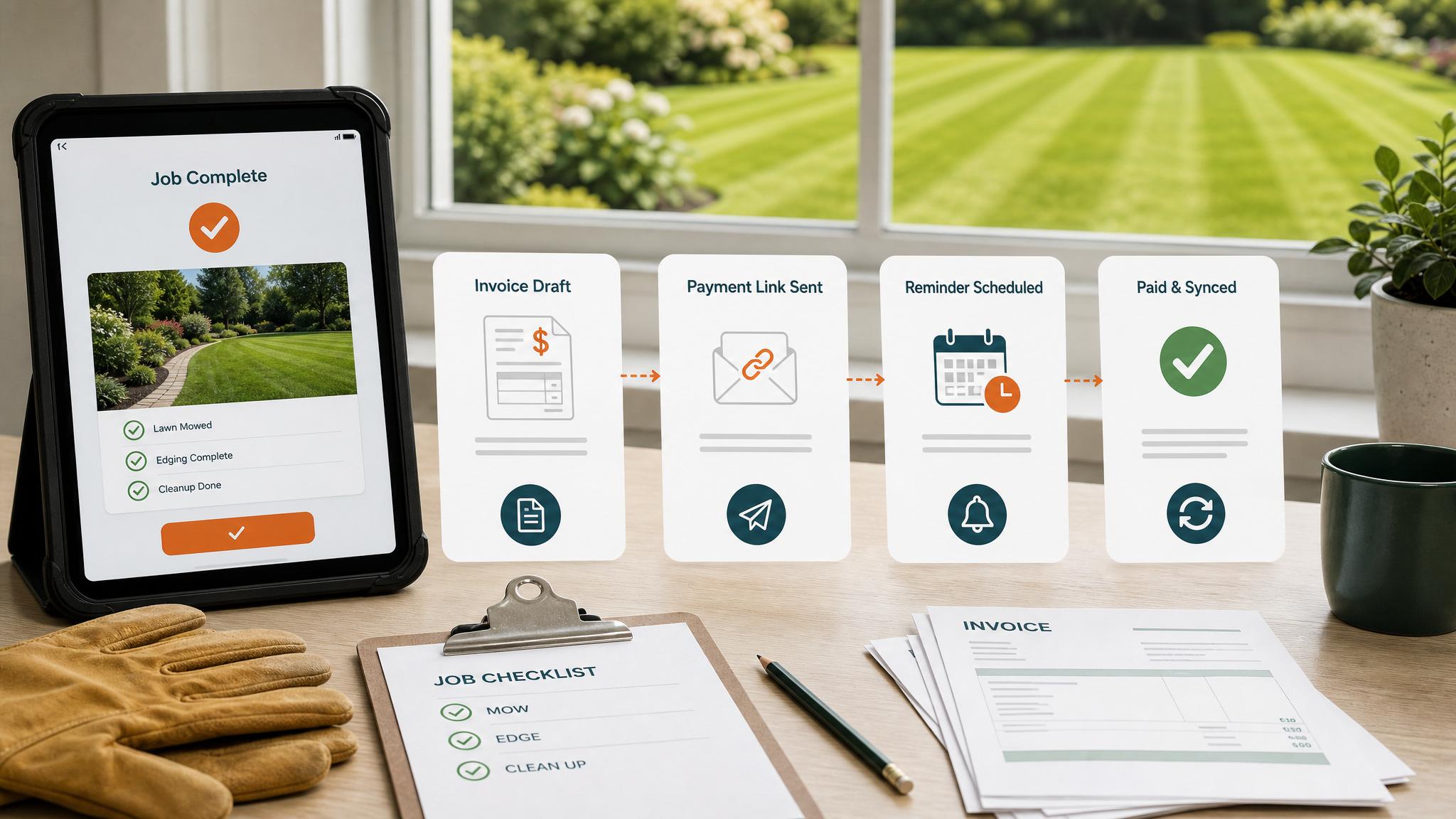
After the invoice sends, use the accounting record as the payment source of truth. Stop reminders for paid, credited, disputed, or manually paused invoices. After a short standard sequence, create an office follow-up task with the job and invoice context.
Do not let the field-service platform and accounting platform both send overlapping reminders.

Test the workflow safely
Use non-customer records to test a normal route visit, a weather cancellation, a deposit-backed project phase, a missing change-order approval, a duplicate completion event, and a recorded payment. Each exception should stop the invoice or reminder and create a visible task.
Do not send a real customer invoice or submit a real form during testing.
How Business Boomer helps
Business Boomer maps one field-to-invoice path, identifies the operational and accounting sources of truth, and documents review, reminder, and exception rules. Review the Invoice Automation Setup in 7 Days, compare service options, or contact Business Boomer with the field-service and accounting tools in use.
Keep building the system
Recommended next Business Boomer guides
These links are selected by topic and search intent so this guide connects to the most relevant service pages, industry pages, and supporting blog posts.
Service and setup pages
Use these when you are ready to turn the idea into an implementation path.
Industry-specific pages
See how the same workflow changes for specific business types.
Related blog posts
Read the connected guides that support this topic cluster.
Related AI automation guides
Keep going with the connected Business Boomer guides in this automation cluster.
Invoice automation for contractors
Connect completed jobs, estimates, QuickBooks, payment links, and overdue follow-up for contractor workflows.
Invoice automation setup in 7 days
A practical guide to one billing trigger, payment link, reminder sequence, overdue task, and owner handoff.
AI automation for local service businesses
Practical lead, scheduling, review, CRM, invoice, and admin automation for plumbers, HVAC companies, roofers, landscapers, cleaners, contractors, and other local operators.
QuickBooks invoice automation setup
Connect QuickBooks invoice drafts, payment links, reminders, and overdue follow-up to real workflow triggers.
FAQ
Quick answers about this guide and how to put the idea into practice.
What is the main takeaway from Invoice Automation for Landscapers?
Connect verified job completion to the right invoice while protecting deposits, route work, weather delays, and change orders.
How does invoice automation for landscapers help a small business?
invoice automation for landscapers can help a small business reduce manual work, improve follow-up, organize repetitive tasks, and create a clearer operating process when it is tied to a real bottleneck.
Can Business Boomer help implement invoice automation for landscapers?
Yes. Business Boomer can help turn the idea into a practical workflow, page, checklist, or automation system depending on what the business needs first.
Turn invoice follow-up into a working setup.
Business Boomer can map the billing trigger, payment link, reminder timing, and overdue handoff for one focused invoice workflow.
See Invoice Automation Setup