
Invoice Automation for Home Service Businesses
Connect field completion to office review without treating every home-service job or billing model the same.


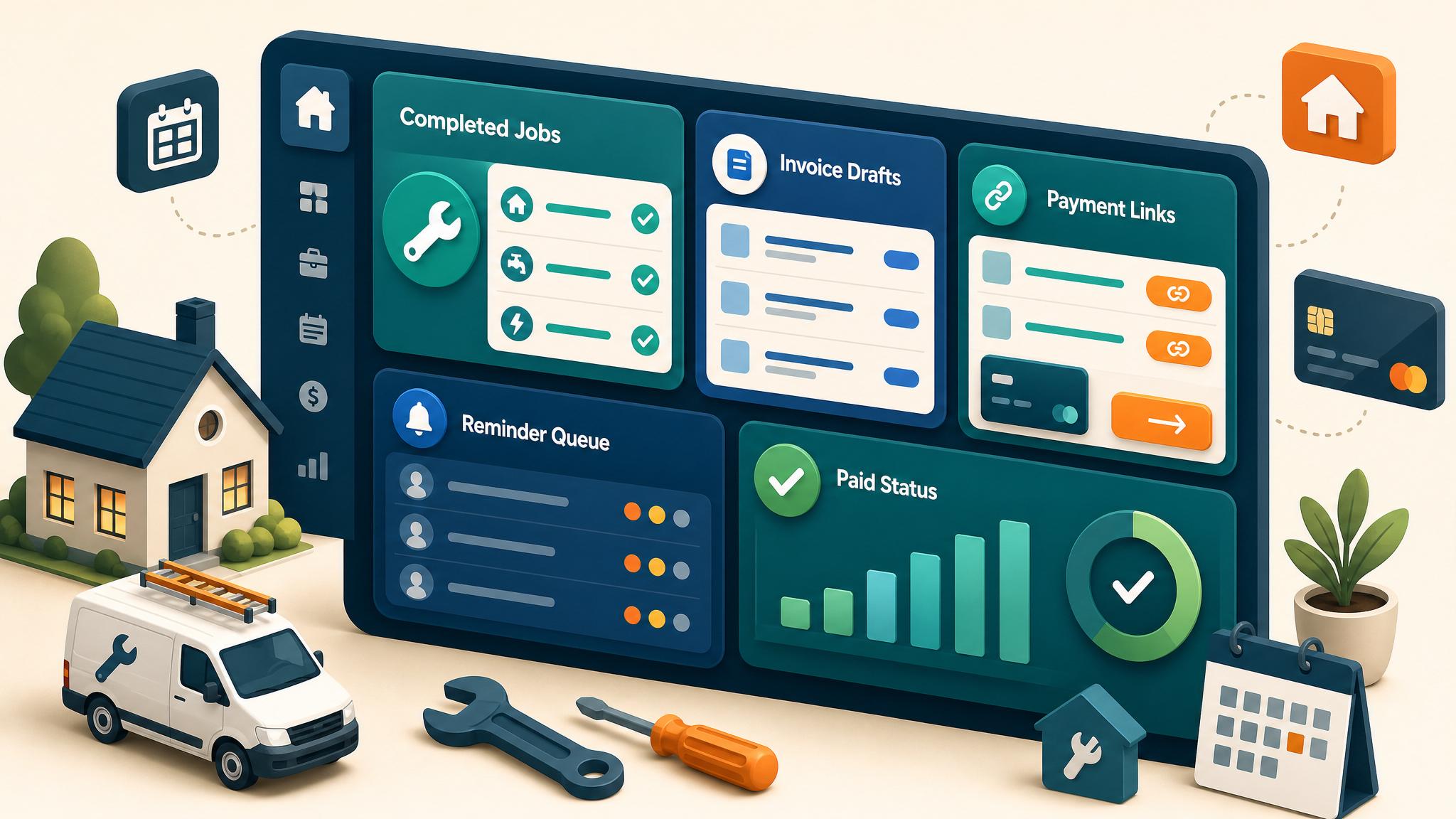
Home-service invoicing starts in the field but usually finishes in the office. A technician can mark a visit complete while photos, parts, an approved change, a deposit, or the customer record still needs review. A safe workflow connects those two realities instead of assuming every completed job is ready to bill.
Identify the billing path first
Home-service businesses may use several models at once:
- fixed-price service calls
- time and materials
- accepted estimates with deposits
- progress billing for larger projects
- recurring maintenance visits
- warranty work, callbacks, or no-charge visits
Give each model an explicit billing rule. A completed status should not automatically send an invoice if the amount or obligation still depends on another event.
Define “ready to bill”
Before creating a draft, validate the information the office needs:
| Required input | Example check |
|---|---|
| Customer and service location | Correct account and billing contact |
| Job status | Completed, not rescheduled or callback |
| Scope and price rule | Fixed price, approved estimate, or verified time and materials |
| Supporting evidence | Notes, parts, photos, signatures, or approval when required |
| Prior payments | Deposit or progress payment applied once |
| Stable job identifier | Used to prevent duplicate invoices |
If an input is missing, create an office task with the job reference and missing field. Do not silently guess or send.
A controlled field-to-office workflow
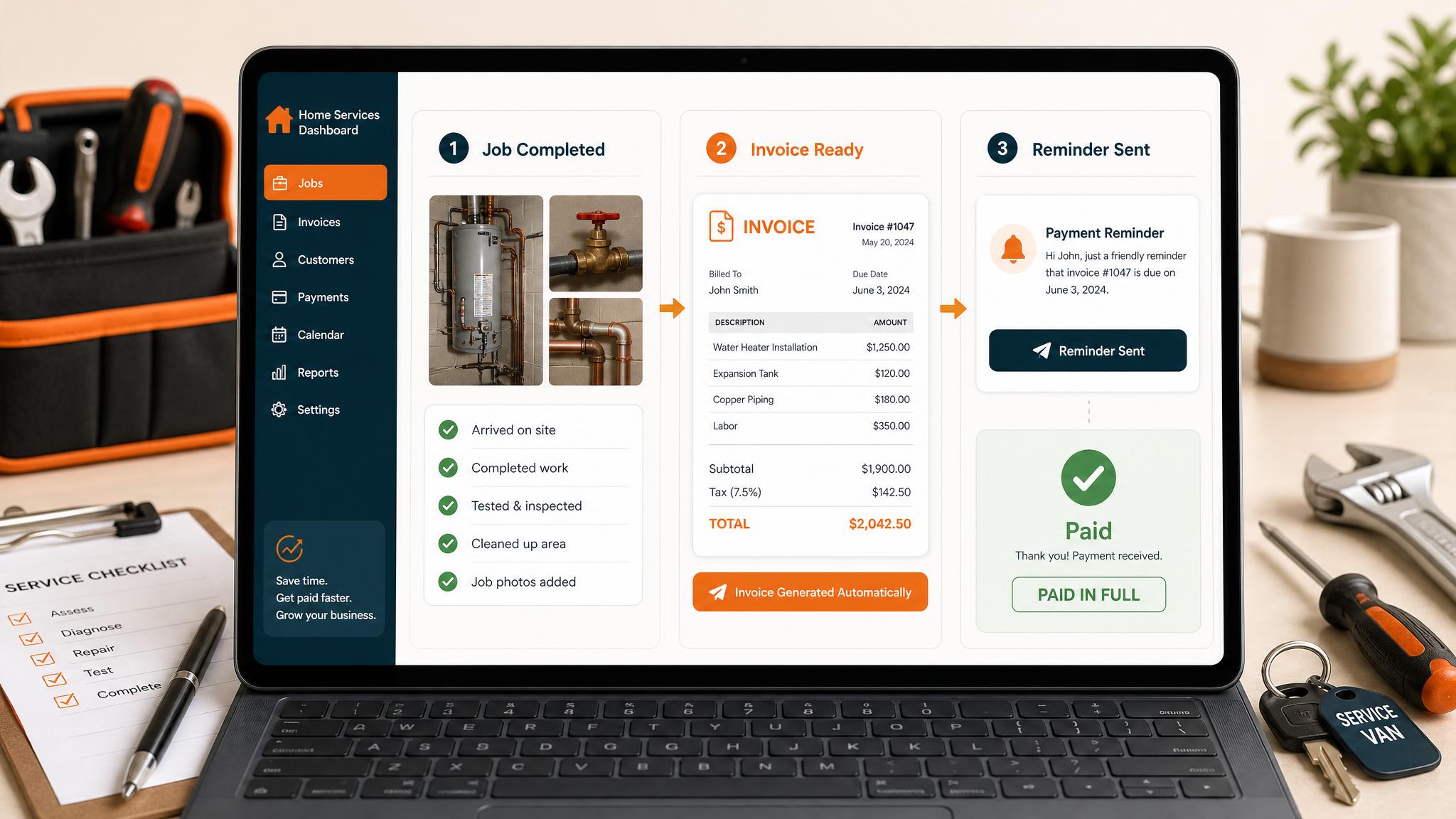
- The field system records a billable state.
- Validation checks customer, job, pricing, completion evidence, and prior payment.
- Duplicate protection looks for an invoice tied to the same job or billing milestone.
- A draft is created in the accounting system.
- Office review resolves variable totals, changes, credits, and exceptions.
- The approved invoice sends with the configured payment path.
- Payment status stops reminders; unresolved items become human follow-up.
Treat deposits and change orders carefully
An accepted estimate may require a deposit before scheduling, a progress invoice at a defined milestone, and a final balance after completion. Store the estimate, deposit, and milestone references so a retry cannot charge the same stage twice.
Changed scope should use the business's existing approval process. A technician note alone may not be enough to change the invoice. When approval evidence is missing, route the job to review.
Keep one owner for customer-facing actions
Field-service software and accounting software may both offer invoice emails, payment links, or reminders. Decide which system owns each action. Otherwise a customer can receive duplicate messages even when the invoice itself is correct.
Use the accounting system as the financial source of truth unless the business has deliberately chosen another documented arrangement. Sync operational status back only after the accounting event is confirmed.
Build a useful exception queue
An exception needs more than an error message. Include:
- customer and job ID
- reason the workflow stopped
- last successful step
- current invoice or payment reference
- named owner
- safe next action
Common exceptions include missing completion notes, unmatched customers, changed totals, duplicate triggers, deposit mismatches, failed accounting syncs, disputes, and callbacks.
Test representative jobs
Use non-customer records for a fixed-price job, time-and-materials job, accepted estimate with deposit, approved change, missing approval, recurring visit, callback, duplicate trigger, failed sync, and payment. Verify one accounting record, correct review behavior, and visible failures.
Do not submit a real customer form, send a real invoice, or contact a customer during testing.
How Business Boomer helps
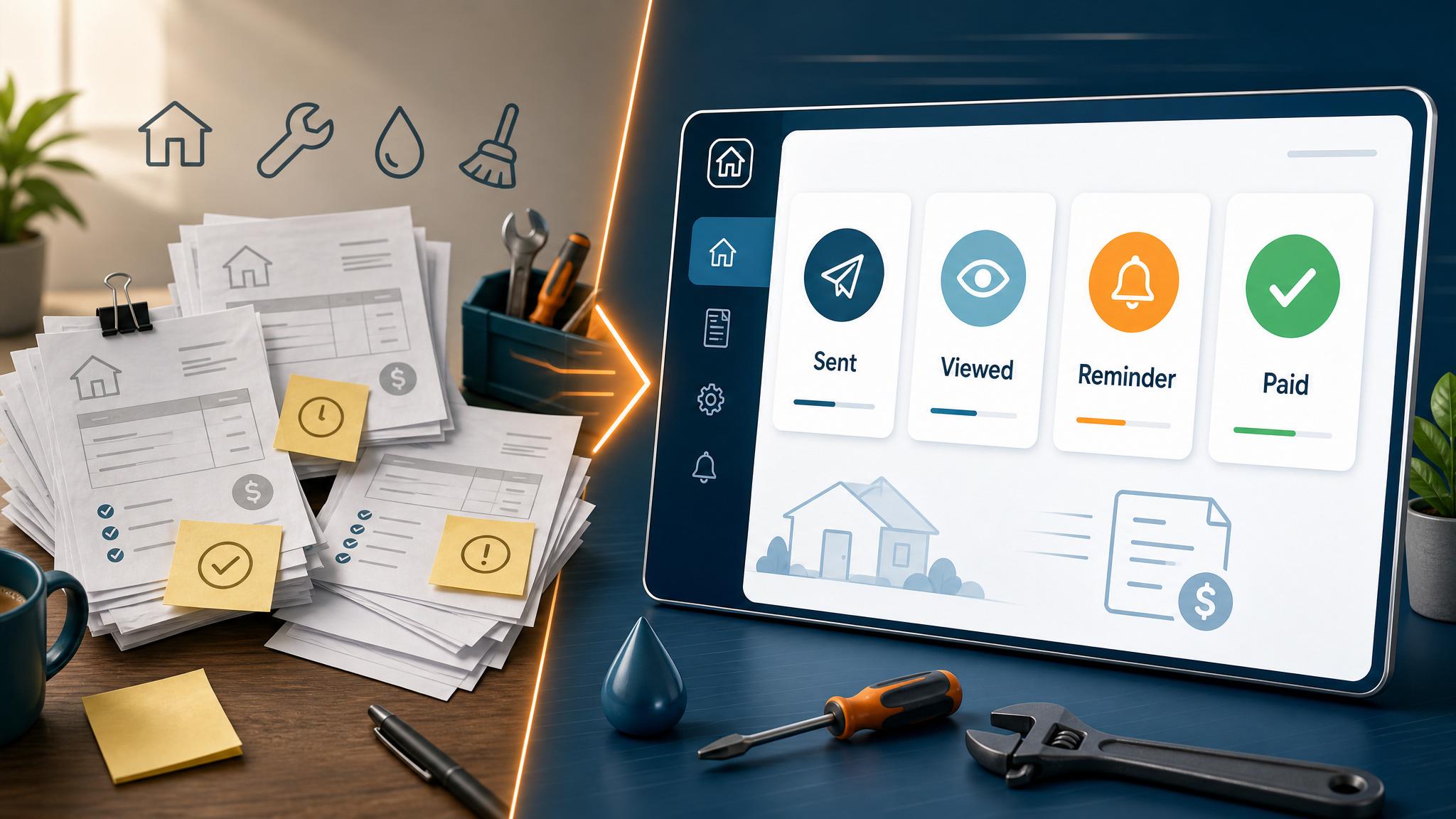
Business Boomer maps one home-service billing path, defines the field-to-office handoff, and documents review, duplicate, payment, and exception rules. Review the QuickBooks invoice automation guide, see the Invoice Automation Setup in 7 Days, compare service options, or contact Business Boomer.
Keep building the system
Recommended next Business Boomer guides
These links are selected by topic and search intent so this guide connects to the most relevant service pages, industry pages, and supporting blog posts.
Service and setup pages
Use these when you are ready to turn the idea into an implementation path.
Industry-specific pages
See how the same workflow changes for specific business types.
Related blog posts
Read the connected guides that support this topic cluster.
Related AI automation guides
Keep going with the connected Business Boomer guides in this automation cluster.
Invoice automation setup in 7 days
A practical guide to one billing trigger, payment link, reminder sequence, overdue task, and owner handoff.
QuickBooks invoice automation setup
Connect QuickBooks invoice drafts, payment links, reminders, and overdue follow-up to real workflow triggers.
Invoice automation ROI calculator
A conversion helper that estimates admin time saved, faster payment collection, and the value of reducing manual invoice chasing.
Invoice automation for contractors
Connect completed jobs, estimates, QuickBooks, payment links, and overdue follow-up for contractor workflows.
FAQ
Quick answers about this guide and how to put the idea into practice.
What is the main takeaway from Invoice Automation for Home Service Businesses?
Connect field completion to office review without treating every home-service job or billing model the same.
How does invoice automation for home services help a small business?
invoice automation for home services can help a small business reduce manual work, improve follow-up, organize repetitive tasks, and create a clearer operating process when it is tied to a real bottleneck.
Can Business Boomer help implement invoice automation for home services?
Yes. Business Boomer can help turn the idea into a practical workflow, page, checklist, or automation system depending on what the business needs first.
Turn invoice follow-up into a working setup.
Business Boomer can map the billing trigger, payment link, reminder timing, and overdue handoff for one focused invoice workflow.
See Invoice Automation Setup