
Your Google Form Opens but Won’t Accept Enquiries: Check the Intake Window
A working enquiry link is not proof that the form is accepting new submissions. Check the intake window before restarting promotion.
A customer can reach your enquiry form and still be unable to send an enquiry. If the page says it is no longer accepting responses, stop treating a working link as proof that intake is working. First establish whether the closure is intentional; then check the form’s collection settings.
This matters when an AI-written campaign keeps directing people to an old intake link. Rewriting the invitation will not open a closed form. The useful next step is to reconcile the invitation with the owner’s actual intake window.
Read the visitor’s closed-form message
Open the exact link used in the customer-facing message, not a similarly named form in your editing dashboard. Record the form title and the closure wording. If you instead encounter a sign-in or access restriction, treat that as a different problem; do not broaden access to make this checklist pass.
Google’s response-management guidance explains that a published form can stop accepting responses and display a default or custom closure message. Publication and response acceptance are therefore separate things to check.
Before changing anything, save a brief diagnostic note: which invitation contained the link, what the visitor saw, and who owns the form. Do not collect a real customer’s answers just to demonstrate the failure.
Establish whether this intake window should still be open
Consider this fictional example. A workshop offered six consultation appointments for an October event. The organiser closed registration when those slots were allocated. An assistant later reused an AI-written invitation containing the same form link for a November promotion.
The closed form is not necessarily broken. The new invitation may be pointing to the wrong intake. Reopening October registration could create requests the organiser did not intend to accept.
Ask the owner to settle three questions:
- Is this the correct form for the current offer?
- Is there approved capacity to accept more enquiries?
- Should this intake reopen, or should the invitation use a different approved destination?
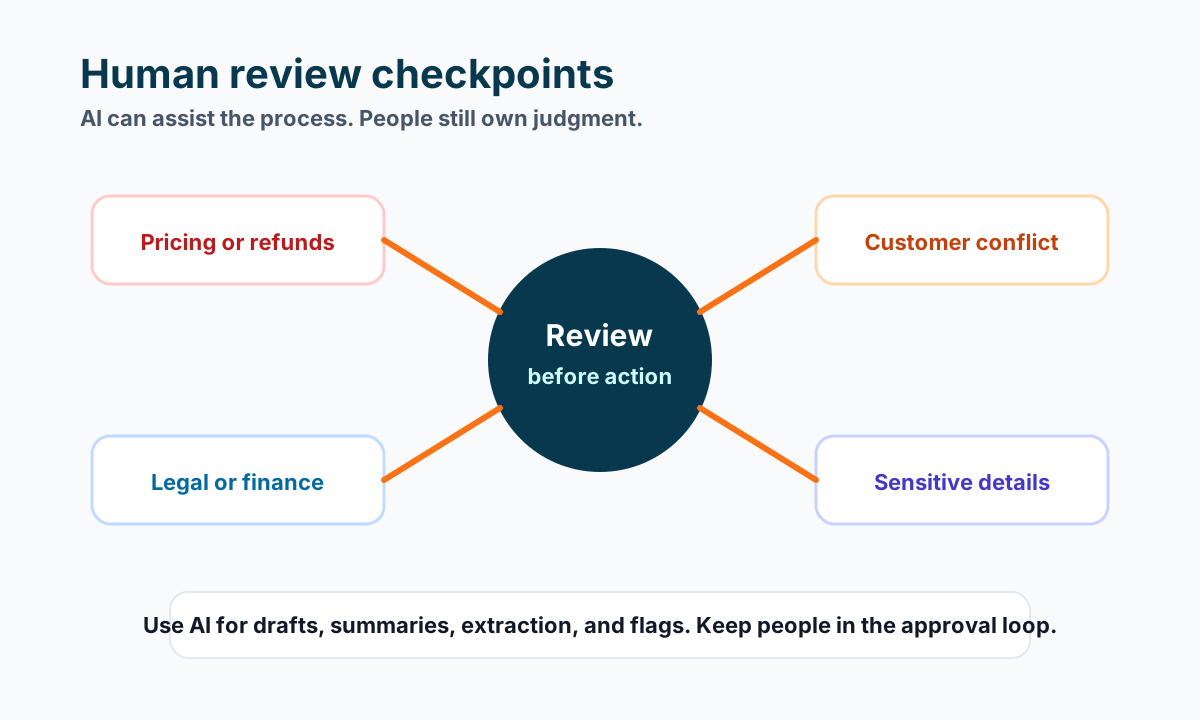
Keep the answers beside the form link. If the offer has ended, revise the invitation or remove its outdated call to action through the normal approval process. Do not let an AI assistant infer availability from an old invitation.
Inspect publication and response acceptance separately
For a published form, Google documents the response-acceptance control under Published. Its current guidance also describes optional closure by date or response count. Check the actual settings in your form; their presence in documentation does not establish which ones you enabled.
Compare any configured closing condition with the owner’s decision. An accidental past closing date and an intentional registration limit call for different actions. Record the setting you found before editing it, and change only the setting needed for the approved intake.
If the form is unpublished, Google says it cannot accept responses. Publishing it is not a harmless diagnostic step: confirm the intended audience and the owner’s permission first. Similarly, leave collaborator access and existing response records alone while investigating a closure. Deleting submissions is not part of this procedure.
After an authorised change, save it and revisit the customer-facing link. A dashboard switch alone is not the final acceptance test.
Verify one authorized test submission before resuming promotion
With the owner’s permission, use clearly labelled test information and avoid triggering a real booking, payment or customer follow-up. If submitting the form starts downstream actions, arrange a safe test with the workflow owner first. Do not assume a test label suppresses automation.
Review the visitor experience, then look for that specific submission in the form’s Responses area. Google documents viewing submissions individually there. Match the test entry to the test you actually made rather than treating an older response as proof of current collection.
Record the result narrowly:
| Observation | What it establishes |
|---|---|
| The correct form loads | The invitation reaches that form |
| The closure message is gone | That particular obstacle is no longer visible |
| The labelled test appears in Responses | That test reached the form’s response store |
| A separate downstream check passes | Only the specific follow-up step you checked |
A stored response does not, by itself, establish that your CRM, email notification or receptionist workflow processed it. If the response exists but its notification is missing, continue with the separate missing enquiry email checks.
Keep the campaign paused or the destination unapproved until the intended path has been checked. If no safe submission test is available, record “collection unverified” rather than announcing that enquiries are flowing again.
Need help connecting your intake form to a clearly reviewed follow-up process? Contact Business Boomer with the form’s purpose and the step that stops working. Use fictional or redacted examples instead of sending customer information in your first enquiry.
Keep building the system
Recommended next Business Boomer guides
These links are selected by topic and search intent so this guide connects to the most relevant service pages, industry pages, and supporting blog posts.
Service and setup pages
Use these when you are ready to turn the idea into an implementation path.
Industry-specific pages
See how the same workflow changes for specific business types.
Related blog posts
Read the connected guides that support this topic cluster.
Related AI automation guides
Keep going with the connected Business Boomer guides in this automation cluster.
Lead follow-up automation for small business
Turn form fills, missed calls, quote requests, emails, and voice notes into reply drafts, CRM updates, reminders, and next steps.
Missed lead cost calculator
A calculator page for estimating the monthly revenue lost when calls, forms, chat, and messages sit too long before follow-up.
Website chat automation
Owner-approved website chat, intake questions, lead capture, CRM routing, and follow-up tasks.
AI sales team and lead follow-up setup
Turn sales calls, form fills, quote requests, and owner notes into follow-up emails, calendar invites, CRM updates, and next-step reminders.
FAQ
Quick answers about this guide and how to put the idea into practice.
What is the main takeaway from Your Google Form Opens but Won’t Accept Enquiries: Check the Intake Window?
A working enquiry link is not proof that the form is accepting new submissions. Check the intake window before restarting promotion.
How does Google Form not accepting enquiries help a small business?
Google Form not accepting enquiries can help a small business reduce manual work, improve follow-up, organize repetitive tasks, and create a clearer operating process when it is tied to a real bottleneck.
Can Business Boomer help implement Google Form not accepting enquiries?
Yes. Business Boomer can help turn the idea into a practical workflow, page, checklist, or automation system depending on what the business needs first.
Stop letting leads sit without a next action.
Business Boomer can install lead capture, first-response drafts, quote follow-up reminders, and a simple owner handoff.
See Lead Follow-Up Automation