
Website Inquiry Missing from Gmail? Check Search and Filters Before Resending
An empty inbox does not tell you whether a website notification failed to arrive. Trace the exact mailbox, message and matching rule before creating another lead.

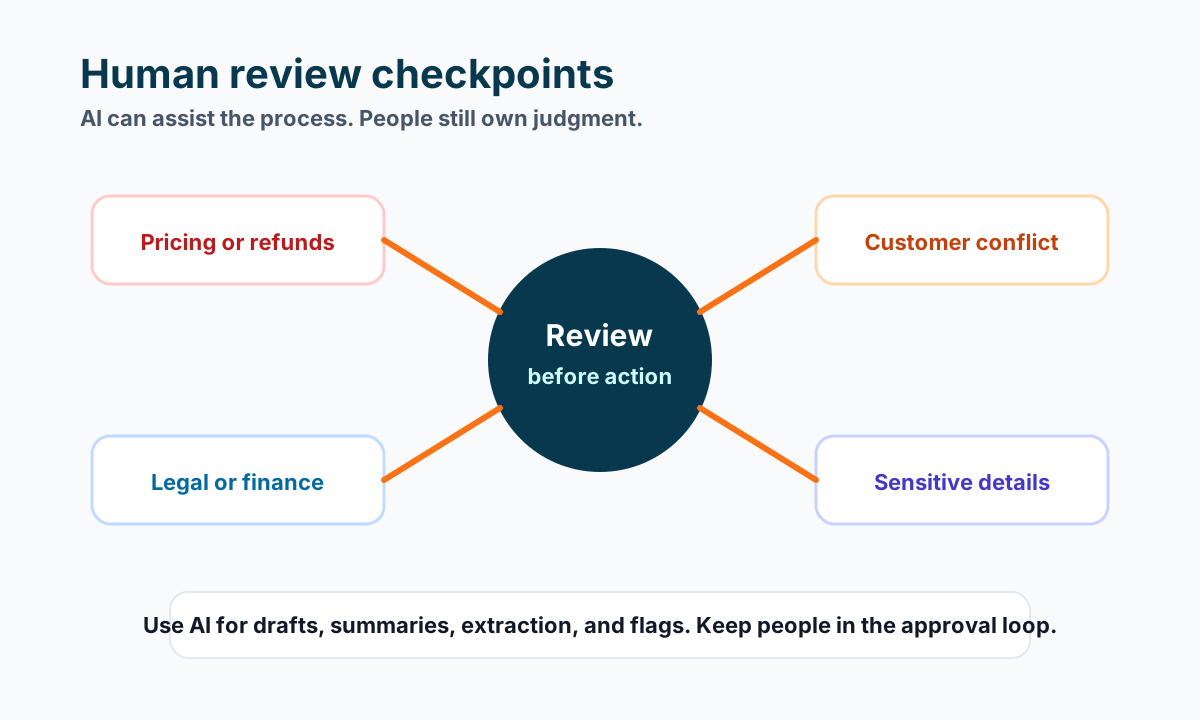
Your website shows an inquiry, but the notification is not in the inbox you normally check. Before asking the customer to submit again, separate two possibilities: the message did not reach that mailbox, or it arrived somewhere other than the inbox.
Start with one specific inquiry, not a general claim that email is broken. A form entry, a provider’s send record and a message visible in Gmail are different pieces of evidence. None proves that someone reviewed or answered the customer.
Identify the expected mailbox and message
Record the inquiry reference, approximate submission time and configured notification recipient. Check the actual Gmail account you are viewing. A similarly named account, shared address or browser profile can make an inbox search misleading.
Find a previous notification from the same approved route, if one exists. Note its actual sender and subject pattern rather than assuming the customer’s address is the sender. A website service may generate the notification itself. Treat the old message as a search aid, not evidence that today’s message arrived.
If the recipient or notification configuration is unknown, have the authorized website owner inspect it. Do not change recipients, forwarding or permissions just to make a test convenient. Keep the customer’s original inquiry intact while the route is investigated.
Search beyond the inbox with a narrow query
Google’s Gmail search guidance documents in:anywhere, which includes Spam and Trash, as well as sender, subject and date operators. Use known message details to reduce unrelated results.
For a fictional notification sent by forms@example.com, a starting query could be:
in:anywhere from:forms@example.com subject:inquiry newer_than:2d
Replace those details with the observed route. This is an illustrative query, not a test of your website. Inspect each matching message’s recipient, time and inquiry reference; do not count an older notification with the same subject as today’s delivery.
If nothing matches, loosen one uncertain criterion at a time. A changed sender or subject can make a narrow search miss the relevant message. An empty result is still not proof that the website failed to send. Record what you searched and return to the website’s exact submission and delivery evidence.
If a message appears in Spam, do not open unexpected attachments or broadly trust every message from a domain. Follow your business’s approved review process before changing spam handling.
Compare matching filters with the actual message
Google’s filter documentation explains that rules can label, archive, delete or forward incoming mail. On a computer, inspect Settings → See all settings → Filters and Blocked Addresses. Look at the conditions and actions of rules that could match the actual notification.
A message outside the inbox and a plausible filter are clues, not a complete causal proof. Record the message’s observed location and the rule’s exact criteria. Other handling may also be involved. Avoid deleting every rule or enabling broad forwarding; those changes can affect unrelated mail.
Here is a fictional investigation record:
| Evidence | Observation | What remains unknown |
|---|---|---|
| Inquiry reference | WEB-104 appears in the website record | Whether an email was delivered |
| Gmail message | Same reference and recipient found outside Inbox | Why it was placed there |
| Candidate filter | Sender condition matches; archive action selected | Whether another rule or action also applied |
The table does not establish a customer response or a repaired workflow. It gives the authorized owner a specific rule to review instead of a vague request to “fix Gmail.”
Verify one approved sample and record the boundary
If a change is approved, preserve the original rule details and change only the identified condition or action. Google documents editing filters in the same settings area. Do not treat a successful settings save as proof that the next notification will be visible.
Use one clearly labeled synthetic inquiry through the approved test route. Before submitting, confirm that the test will not start customer messages, sales tasks or other downstream actions. If those effects cannot be isolated within existing authority, stop at the prepared test plan.
For an allowed test, compare the website reference with the resulting Gmail message and its location. Then check the person responsible for reviewing it can find it. A passing sample establishes only that sample’s result; it does not recover every earlier inquiry or guarantee future delivery.
Keep missing delivery, hidden mail and unanswered inquiries as separate findings. For the broader owner-and-next-step process, see our lead follow-up guide. If you need help tracing your form-to-inbox handoff, contact Business Boomer about a scoped workflow review. Bring one synthetic example and the exact unresolved step—not a customer list or a promise that every notification is now fixed.
Keep building the system
Recommended next Business Boomer guides
These links are selected by topic and search intent so this guide connects to the most relevant service pages, industry pages, and supporting blog posts.
Service and setup pages
Use these when you are ready to turn the idea into an implementation path.
Industry-specific pages
See how the same workflow changes for specific business types.
Related blog posts
Read the connected guides that support this topic cluster.
Related AI automation guides
Keep going with the connected Business Boomer guides in this automation cluster.
AI website for service businesses
Clearer service pages, lead paths, FAQs, reviews, and AI-assisted follow-up for service businesses.
AI website cost for local business
Compare free previews, focused improvement sprints, full rebuilds, and AI assistant setup.
Free website preview for local businesses
A local-business offer page for owner-review-safe website previews, better lead paths, review ideas, FAQs, and AI assistant support.
How to use AI in real estate
Lead routing, voice-note capture, follow-up systems, and website inquiry flow.
FAQ
Quick answers about this guide and how to put the idea into practice.
What is the main takeaway from Website Inquiry Missing from Gmail? Check Search and Filters Before Resending?
An empty inbox does not tell you whether a website notification failed to arrive. Trace the exact mailbox, message and matching rule before creating another lead.
How does website inquiry missing from Gmail help a small business?
website inquiry missing from Gmail can help a small business reduce manual work, improve follow-up, organize repetitive tasks, and create a clearer operating process when it is tied to a real bottleneck.
Can Business Boomer help implement website inquiry missing from Gmail?
Yes. Business Boomer can help turn the idea into a practical workflow, page, checklist, or automation system depending on what the business needs first.
Stop letting leads sit without a next action.
Business Boomer can install lead capture, first-response drafts, quote follow-up reminders, and a simple owner handoff.
See Lead Follow-Up Automation