
QuickBooks Payment Links for Small Business Invoices
A payment-focused guide to making invoices easier to pay while keeping reconciliation and follow-up tied to the accounting record.


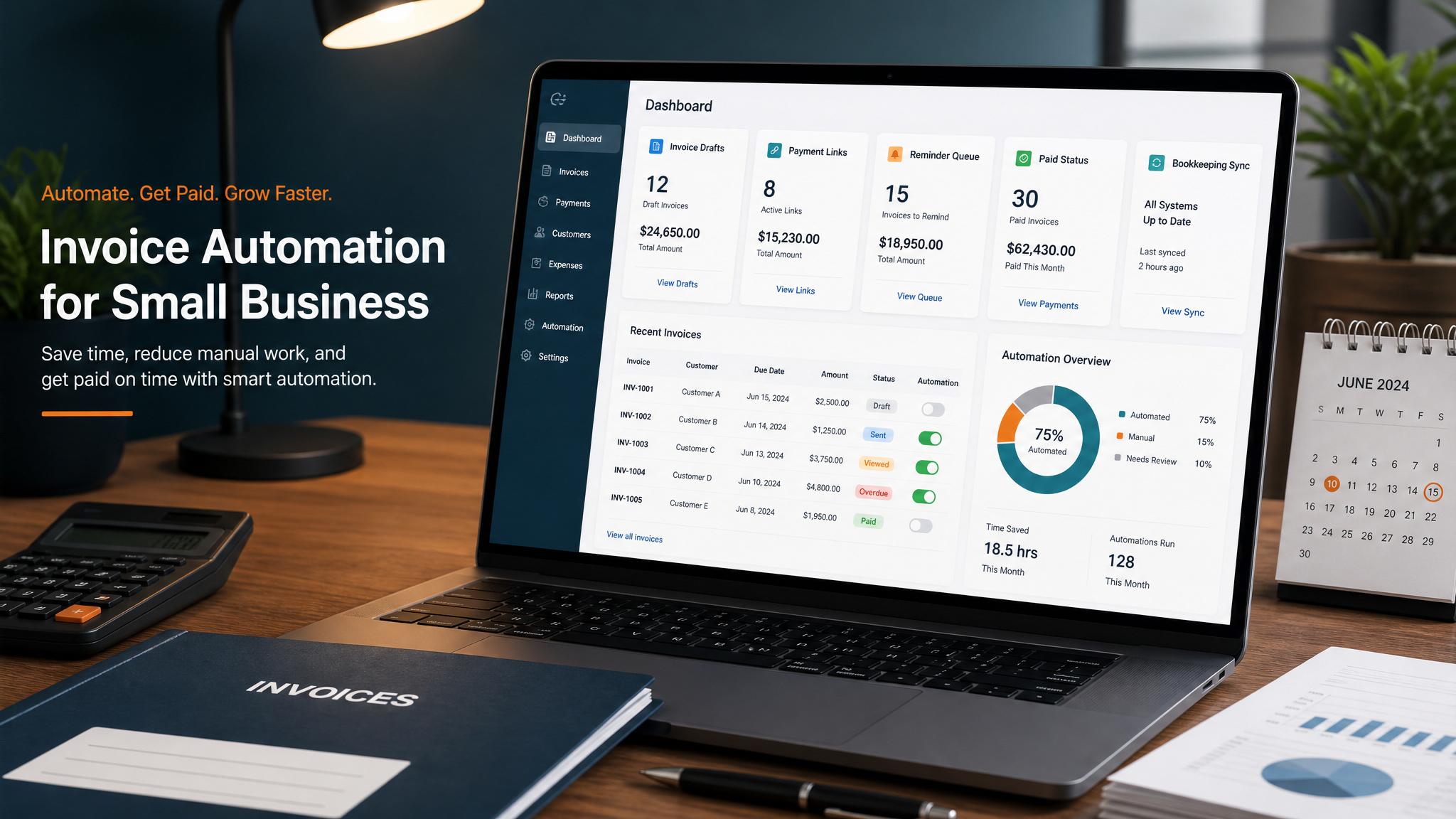
A payment link is useful when it makes the correct invoice easy to pay and keeps the result connected to the accounting record. It is not a substitute for accurate line items, clear terms, or a controlled reminder process.
Product options and fees can change, so confirm the payment methods and settings available in the business’s current QuickBooks account before enabling a live workflow.
Start with the invoice, not the link
Before sending, verify:
- customer and billing contact
- invoice number and current balance
- line items, taxes, credits, and deposits
- due date and payment terms
- payment methods the business has approved
- who handles disputes, refunds, and partial payments
The customer should be able to connect the payment page to the invoice they received without guessing.
Invoice payment option versus standalone request
Use the payment option attached to the invoice when the goal is to settle that specific receivable and keep status in the accounting workflow. A separate payment request may have different reconciliation and documentation needs.
Avoid sending two different payment routes for the same balance unless the business has a clear policy. Competing links can confuse the customer and make reconciliation harder.
Customer experience checklist
Open the customer-facing payment route in a safe test context and check that it:
- identifies the business clearly
- connects to the intended invoice or amount
- presents only approved payment choices
- works on mobile without horizontal scrolling
- returns a confirmation state the team can recognize
- does not expose internal notes or unrelated customer data
Do not submit a real payment or use customer data for testing.
Reconciliation is the critical automation
The workflow should use QuickBooks’ recorded invoice balance and payment status as its accounting source of truth. When payment is recorded, reminders must stop. If a payment fails, is partial, or cannot be matched, create an exception for a person rather than assuming the invoice is settled.
Useful exception fields include invoice number, customer, remaining balance, payment date, payment method, and the last attempted reminder.
Control reminder links
Every reminder should point to the same current invoice payment route. Before sending, confirm that the invoice is still open and not disputed or paused. Do not let an accounting-platform reminder and an outside automation both contact the customer on the same schedule.
Use a small sequence and then escalate personally. The invoice reminder templates provide message structure without turning the process into endless automated chasing.
Security and operational boundaries
- Use current account permissions and least-necessary access.
- Do not copy payment details into spreadsheets or automation logs.
- Keep refunds and charge disputes in an owner-approved process.
- Record who can change payment settings and reminder rules.
- Recheck the live configuration after material account or workflow changes.
A focused implementation sequence
| Stage | Verification |
|---|---|
| Invoice | Correct customer, amount, terms, and balance |
| Payment route | Approved methods and recognizable customer experience |
| Accounting status | Payment updates the intended invoice |
| Reminder stop | Paid, disputed, credited, or paused invoices do not receive follow-up |
| Exception | Partial, failed, or unmatched payment creates a named task |
For the broader billing workflow, see QuickBooks invoice automation and the invoice automation checklist.
How Business Boomer helps
Business Boomer can map one invoice-to-payment path, document the accounting source of truth, test status-based reminder controls, and define the exception handoff. Review the Invoice Automation Setup in 7 Days, compare service options, or contact Business Boomer with the current billing flow.
Keep building the system
Recommended next Business Boomer guides
These links are selected by topic and search intent so this guide connects to the most relevant service pages, industry pages, and supporting blog posts.
Service and setup pages
Use these when you are ready to turn the idea into an implementation path.
Industry-specific pages
See how the same workflow changes for specific business types.
Related blog posts
Read the connected guides that support this topic cluster.
Related AI automation guides
Keep going with the connected Business Boomer guides in this automation cluster.
QuickBooks invoice automation setup
Connect QuickBooks invoice drafts, payment links, reminders, and overdue follow-up to real workflow triggers.
QuickBooks invoice automation for small business
How to use QuickBooks for recurring invoices, reminders, payment tracking, and workflow-connected billing.
Invoice automation for contractors
Connect completed jobs, estimates, QuickBooks, payment links, and overdue follow-up for contractor workflows.
How to automate invoices for small business
A practical guide to invoice creation, reminders, payment tracking, and cash-flow follow-up.
FAQ
Quick answers about this guide and how to put the idea into practice.
What is the main takeaway from QuickBooks Payment Links for Small Business Invoices?
A payment-focused guide to making invoices easier to pay while keeping reconciliation and follow-up tied to the accounting record.
How does quickbooks payment links small business help a small business?
quickbooks payment links small business can help a small business reduce manual work, improve follow-up, organize repetitive tasks, and create a clearer operating process when it is tied to a real bottleneck.
Can Business Boomer help implement quickbooks payment links small business?
Yes. Business Boomer can help turn the idea into a practical workflow, page, checklist, or automation system depending on what the business needs first.
Turn invoice follow-up into a working setup.
Business Boomer can map the billing trigger, payment link, reminder timing, and overdue handoff for one focused invoice workflow.
See Invoice Automation Setup