
How to Set Up Automatic Invoicing for Small Business
A practical automatic invoicing setup guide for small businesses: invoice triggers, tools, reminder sequences, payment links, cash-flow impact, and setup mistakes to avoid.


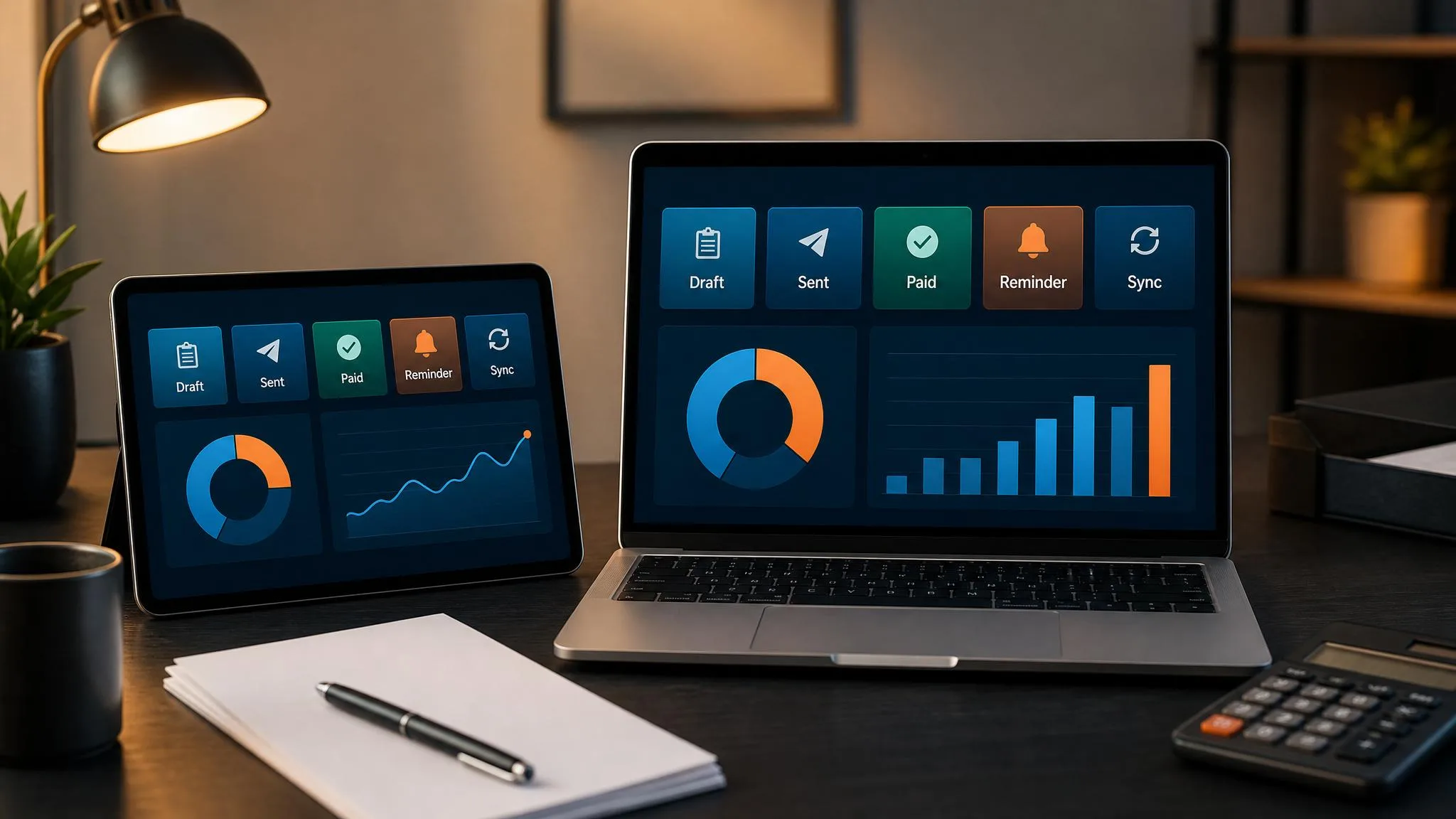
To set up automatic invoicing for a small business, connect invoice creation to a real billing trigger: job complete, estimate accepted, project milestone approved, or recurring service date. Then let the system create the invoice, add the payment link, send the reminder sequence, track payment status, and create a human follow-up task when the customer still has not paid.
For contractors, plumbers, landscapers, cleaning companies, consultants, and agencies, the trigger matters more than the tool. QuickBooks, FreshBooks, Stripe, Jobber, Housecall Pro, Zapier, or Make can all help. The setup works only when the invoice follows the way the business already bills.
If your billing process starts on the website or quote request, pair this with a clearer customer path. Business Boomer can build a free website preview before you connect billing to forms, quotes, or payment links.
When the same customer path also needs lead follow-up, reviews, and owner tasks, treat invoicing as one part of AI automation for local service businesses.
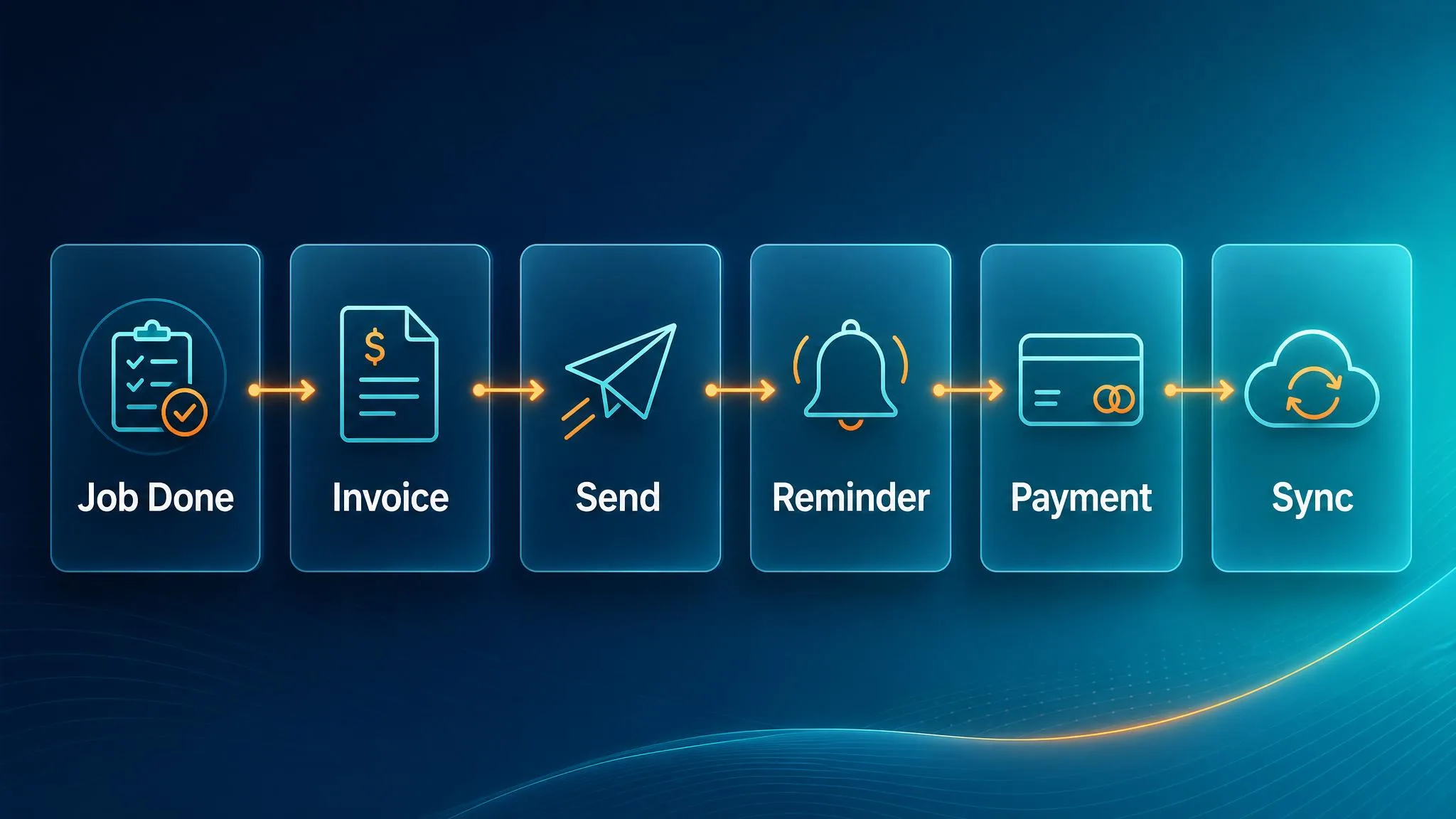
For most small businesses, the best first setup is:
- Work is marked complete.
- An invoice draft is created automatically.
- The owner or admin reviews it if needed.
- The invoice sends with a payment link.
- Friendly reminders run before and after the due date.
- If it is still unpaid, the system creates a human follow-up task.
This removes the manual loop that causes late invoices, awkward follow-up, and cash-flow surprises.
Want this set up instead of reading about it?
Business Boomer sets up one invoice workflow in 7 days.
We map the billing trigger, build the invoice template, add the payment link, create the reminder sequence, test overdue follow-up, and hand you a simple owner/admin SOP.
Quick answer: how do I set up automatic invoicing for my business?
Set up automatic invoicing in this order:
- Choose the invoice tool: QuickBooks, FreshBooks, Stripe Billing, Wave, Jobber, Housecall Pro, or another billing system.
- Define the trigger: job complete, project milestone approved, estimate accepted, subscription date, or recurring service date.
- Create invoice templates: customer, description, tax, payment terms, and line items.
- Add payment links: ACH, credit card, or online payment portal.
- Turn on reminders: before due, due date, overdue, and final human follow-up task.
- Connect accounting: payments should reconcile back into the books.
- Test with one real workflow before rolling it out to every customer.
If your business only needs recurring monthly invoices, QuickBooks or FreshBooks can usually handle it. If invoices depend on completed jobs, CRM stages, estimates, or project milestones, you may need an automation layer like Zapier or Make.
If you want help turning this into a real setup, Business Boomer’s Invoice Automation Setup in 7 Days is built for this exact workflow.
If your search is specifically about setup options, see the focused automatic invoicing setup guide.
What is invoice automation?
Invoice automation is the process of using software to handle the repeated steps of billing:
- creating invoices
- sending invoices
- attaching payment links
- tracking open balances
- sending payment reminders
- escalating overdue invoices to a real person
- syncing payment status with accounting
Traditional invoicing is manual. Someone builds the invoice, checks the amount, emails it, watches for payment, follows up, and updates the books. That process can easily take 3–5 hours per week for a small service business.
Automated invoicing replaces that loop with rules and triggers. A job is marked complete → invoice draft is generated → client receives it → reminders happen automatically → payment reconciles to the books.
Automatic invoicing vs automated invoice processing
These phrases sound similar, but they usually mean different things.
Automatic invoicing usually means your business sends invoices automatically. This is what most small businesses need first.
Automated invoice processing usually means your business receives vendor invoices and processes them automatically for accounts payable. That matters for larger operations, but it is usually not the fastest first win for a small service business.
If you are trying to get paid faster, focus on automatic invoicing first.
Why automated invoicing matters for small businesses
Late invoices create cash-flow drag. If a job finishes today but the invoice goes out next week, you did not just lose seven days. You also delayed the reminder sequence, payment collection, and bookkeeping visibility.
Automated invoicing helps in three ways:
- Invoices go out faster. The system creates or sends the invoice when the work is complete.
- Follow-up becomes consistent. Every customer receives the same professional payment reminders.
- Owners get visibility. Overdue balances can trigger a task, dashboard, or notification instead of disappearing into email.
For a business billing $20,000/month, reducing average collection time from 32 days to 18 days can unlock roughly $9,000 in cash that is already earned but not yet collected. That is not new revenue. It is money arriving sooner.
The best invoice automation workflow for most small businesses
The best workflow is usually simple:
Step 1: Map the current billing process
Write down what happens today:
- Who creates the invoice?
- Where does the invoice amount come from?
- What tells the team work is finished?
- When does the customer receive the invoice?
- What happens if they do not pay?
- Who follows up?
- Where does payment status get tracked?
Do not skip this step. Automating a messy billing process just makes the mess move faster.
Step 2: Pick the source of truth
Your invoice trigger needs a reliable source of truth. That might be:
- job marked complete in Jobber or Housecall Pro
- estimate accepted in QuickBooks
- project milestone approved in ClickUp, Asana, or Monday
- recurring client date in QuickBooks or FreshBooks
- paid deposit or subscription event in Stripe
- row added to Airtable or Google Sheets
The trigger should match how the business actually works.
Step 3: Create invoice templates
Templates prevent errors. Set up:
- service descriptions
- standard line items
- tax settings
- due dates
- customer-facing notes
- payment terms
- payment methods
Avoid vague descriptions like “services rendered.” Specific invoice descriptions reduce confusion and disputes.
Step 4: Add payment links
Every invoice should make payment easy. Add ACH, card, or hosted payment links wherever possible.
The harder it is to pay, the longer people wait.
Step 5: Build the reminder sequence
A simple reminder sequence can look like this:
If you need customer-facing wording, pair this setup with tested invoice reminder templates.
- Day 0: Invoice sent with payment link.
- 3 days before due: Friendly reminder.
- Due date: Payment reminder with invoice number and amount.
- 3–7 days overdue: Polite overdue notice.
- 14 days overdue: Human follow-up task for owner or admin.
The last step matters. Automation should not keep nagging forever. At some point, a real person should review the account.
Step 6: Test with one workflow
Before rolling it out, test one complete path:
- completed job
- invoice draft
- invoice send
- payment link
- reminder timing
- overdue task
- accounting sync
If that works, expand.
Best tools to automate invoices
QuickBooks Online
QuickBooks is usually best when accounting and invoicing need to stay together. It supports recurring invoices, reminders, payment links, customer records, and bookkeeping sync.
Best fit: contractors, service businesses, consultants, agencies, and companies already using QuickBooks.
If QuickBooks is already your accounting source of truth, start with the dedicated QuickBooks invoice automation setup instead of rebuilding the whole billing process.
FreshBooks
FreshBooks is often easier for service businesses that want simple invoicing, time tracking, client-facing invoices, and automatic reminders.
Best fit: freelancers, consultants, agencies, and small professional-service businesses.
Stripe Billing
Stripe Billing works well for subscriptions, online services, retainers, payment links, and card-based billing. It can be more technical but is powerful for recurring revenue.
Best fit: online services, SaaS-like offers, memberships, and retainer businesses.
Jobber or Housecall Pro
Field-service platforms may be better than standalone invoicing software when scheduling, jobs, estimates, invoices, and customer communication all need to connect.
Best fit: landscapers, cleaners, home-service companies, trades, and contractors.
Zapier or Make
Zapier and Make connect the tools you already use. For example:
- job complete in Jobber → draft invoice in QuickBooks
- estimate accepted → create invoice and payment link
- invoice overdue → create task for admin
- invoice paid → send thank-you message
Best fit: businesses where invoicing depends on events outside the accounting tool.
Common mistakes when automating invoices
Mistake 1: Automating before mapping the process
If no one knows the current process, automation will create confusion. Map the process first.
Mistake 2: Sending invoices without review rules
Some businesses need a human review before sending. That is fine. Automate the draft first, then approve before sending.
Mistake 3: Using reminders that sound robotic
Payment reminders should be clear, polite, and specific. Bad reminders can hurt customer relationships.
Mistake 4: Forgetting overdue escalation
An unpaid invoice should eventually create a task for a person. Do not let automation send the same reminder forever.
Mistake 5: Not connecting payment status to accounting
If payments do not reconcile, the team still has manual cleanup work.
Example setup: contractor invoice automation
A contractor might set up this workflow:
- Job is marked complete in the field-service system.
- Invoice draft is created in QuickBooks.
- Admin reviews line items and sends the invoice.
- Customer receives payment link.
- Reminder sends before due date.
- Overdue invoice creates a follow-up task.
- Payment status syncs back to QuickBooks.
This is not complicated, but it saves repeated admin work every week.
Example setup: local service invoice automation
A plumber, HVAC company, cleaner, roofer, or landscaper can use the same pattern:
- Website form, missed call, or estimate request creates the customer record.
- Accepted estimate or completed job triggers an invoice draft.
- The office reviews the amount and line items.
- The customer receives a clean invoice with a payment link.
- Reminders run before and after the due date.
- The owner gets a follow-up task before the account goes stale.
This connects the sales path to the billing path. The customer can find you, request the work, approve the job, and pay without the owner rebuilding the process by hand each week.
Example setup: consultant or agency invoice automation
A consultant or agency might use:
- Monthly retainer date triggers recurring invoice.
- Project milestone approval triggers one-time invoice.
- Payment link is included automatically.
- Reminder sequence runs if unpaid.
- Paid invoice triggers a thank-you note or internal status update.
This keeps billing predictable without the founder remembering every invoice manually.
When should you get help?
You can set up basic recurring invoices yourself if you already use QuickBooks or FreshBooks.
Get help when:
- invoices depend on jobs, projects, or CRM stages
- reminders need different rules by customer type
- payment status needs to update multiple tools
- overdue invoices need owner/admin tasks
- you are not sure which tool should be the source of truth
- you want the workflow tested before it touches real customers
Business Boomer’s 7-day setup exists for this exact situation: one workflow, one billing tool, one reminder sequence, and a simple handoff doc.
Business Boomer helps small businesses set up invoice automation in 7 days: billing trigger, invoice template, payment link, reminder sequence, overdue follow-up task, and owner handoff doc.
If you are not sure whether the setup is worth it yet, use the invoice automation ROI calculator before changing tools.
Next step
If invoices go out late or reminders depend on memory, start with the 7-day invoice automation setup.
If the website is also part of the problem, claim a free website preview so the quote path and billing path can be reviewed together.
What this should look like in practice
A good setup should make the next action obvious. The owner or team should be able to open one place and see what needs attention, what is waiting, and what can be automated.
Simple implementation checklist
| Step | What to check |
|---|---|
| 1 | Pick one billable trigger: job complete, estimate accepted, milestone approved, or monthly service date |
| 2 | Decide whether the system should create a draft or send the invoice automatically |
| 3 | Add the payment link and invoice terms before reminders start |
| 4 | Build the reminder sequence: before due, due date, overdue, then human follow-up |
| 5 | Test one real customer path before rolling it out to every invoice |
For a more detailed pre-launch list, use the invoice automation checklist.
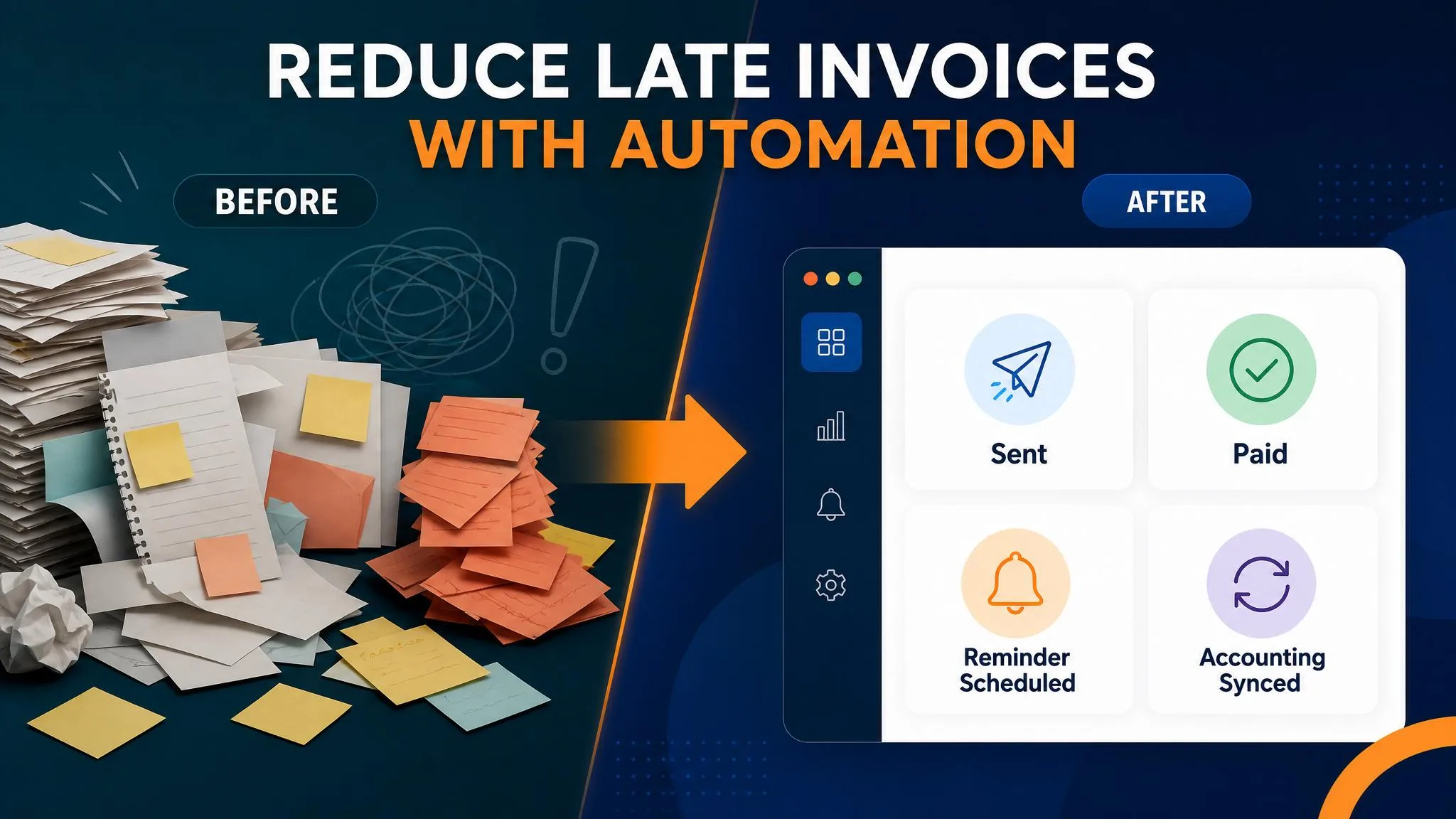
Business Boomer rule: If the workflow does not create a clearer owner, next step, or follow-up path, it is not automation yet. It is just another tool.
Turn the guide into a working setup
Business Boomer sets up one invoice workflow in 7 days.
We map the billing trigger, build the invoice template, add the payment link, create the reminder sequence, test overdue follow-up, and hand you a simple owner/admin SOP.
Keep building the system
Recommended next Business Boomer guides
These links are selected by topic and search intent so this guide connects to the most relevant service pages, industry pages, and supporting blog posts.
Service and setup pages
Use these when you are ready to turn the idea into an implementation path.
Industry-specific pages
See how the same workflow changes for specific business types.
Related blog posts
Read the connected guides that support this topic cluster.
Recommended next steps
These pages connect this guide to the Business Boomer offer, related workflow, and next implementation path.
Related AI automation guides
Keep going with the connected Business Boomer guides in this automation cluster.
Best invoicing automation tools for small business
A comparison of QuickBooks, FreshBooks, Stripe Billing, Wave, Jobber, Housecall Pro, Zapier, and Make.
QuickBooks invoice automation for small business
How to use QuickBooks for recurring invoices, reminders, payment tracking, and workflow-connected billing.
AI automation services for local small business
Planning examples for broader automation. Compare current managed calls and reviews on the Services page; confirm other work in a separate scope.
Lead follow-up automation for small business
Turn form fills, missed calls, quote requests, emails, and voice notes into reply drafts, CRM updates, reminders, and next steps.
FAQ
Quick answers about this guide and how to put the idea into practice.
What is the main takeaway from How to Set Up Automatic Invoicing for Small Business?
A practical automatic invoicing setup guide for small businesses: invoice triggers, tools, reminder sequences, payment links, cash-flow impact, and setup mistakes to avoid.
How does how to automate invoices for small business help a small business?
how to automate invoices for small business can help a small business reduce manual work, improve follow-up, organize repetitive tasks, and create a clearer operating process when it is tied to a real bottleneck.
Can Business Boomer help implement how to automate invoices for small business?
Yes. Business Boomer can help turn the idea into a practical workflow, page, checklist, or automation system depending on what the business needs first.
Find the workflow worth fixing first.
Use the Free 30-Minute AI Consultation to map where leads, invoices, notes, or follow-ups are slipping and choose the smallest useful system.
Book a Free 30-Minute AI Consultation